GNS3 AI Assistant (GNS3 Copilot) started as a separate project. See github.com/yueguobin/gns3-copilot for details. It was created by community developer YueGuobin. It is a network automation assistant based on large language models. It supports managing network devices, diagnosing faults, and automating configuration using natural language. It has been included in GNS3 3.1.
How to configure and use AI Assistant
The AI Assistant (GNS3 Copilot) is a smart assistant feature in GNS3 3.1. It uses large language models (LLMs) to provide intelligent network topology management, fault diagnosis, and automated configuration.
Currently, this feature has been primarily tested with Cisco IOS images that do not have a console login password set.
Configure AI Model Access
Development Testing Note: During the development and testing phase, this feature was primarily tested using DeepSeek models. The former deepseek-chat is now renamed to deepseek-v4-flash or deepseek-v4-pro.
User Configuration
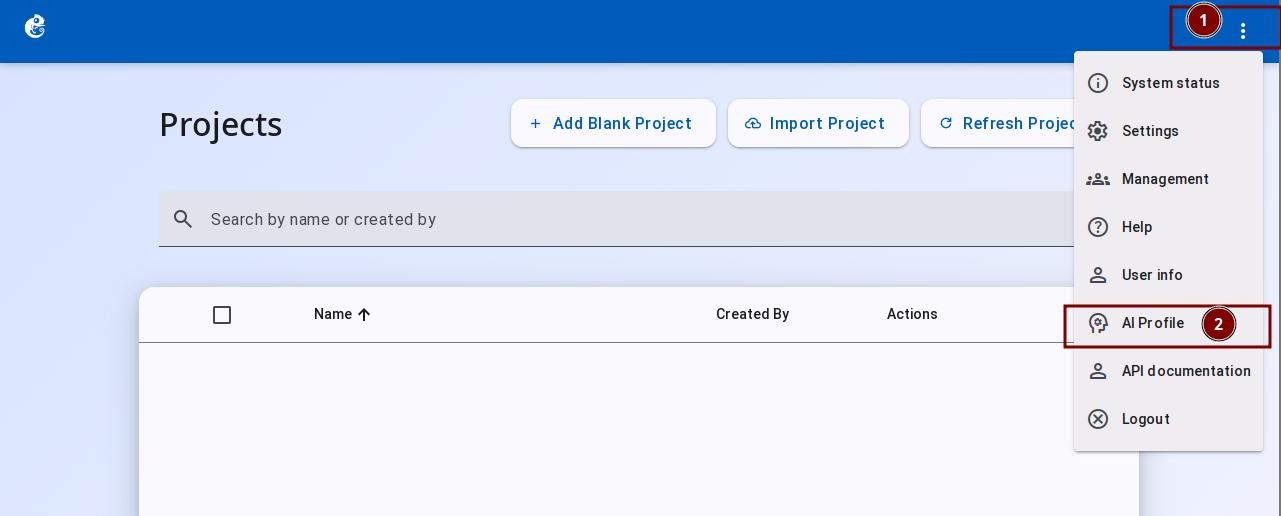
On the project home page, click the three dots at the top right and select AI Profile to go to the configuration page.
Admin Configuration
Admins can configure AI Profiles for users or user groups through the Controller Management page.
Configure for Users
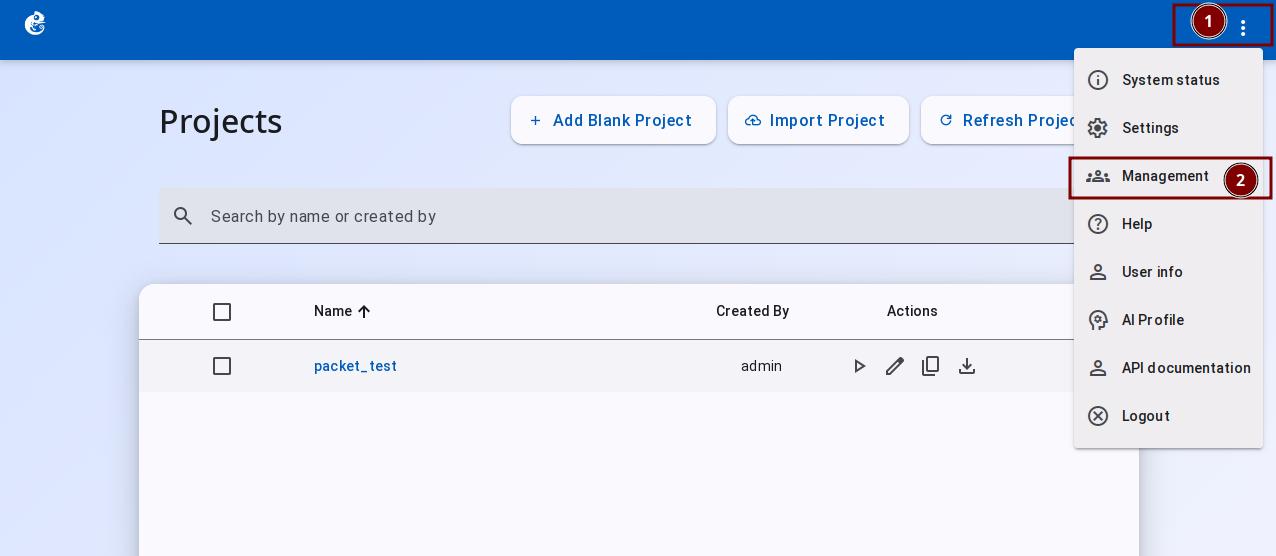
On the project home page, click the three dots at the top right, select Management, then enter the Controller Management page.
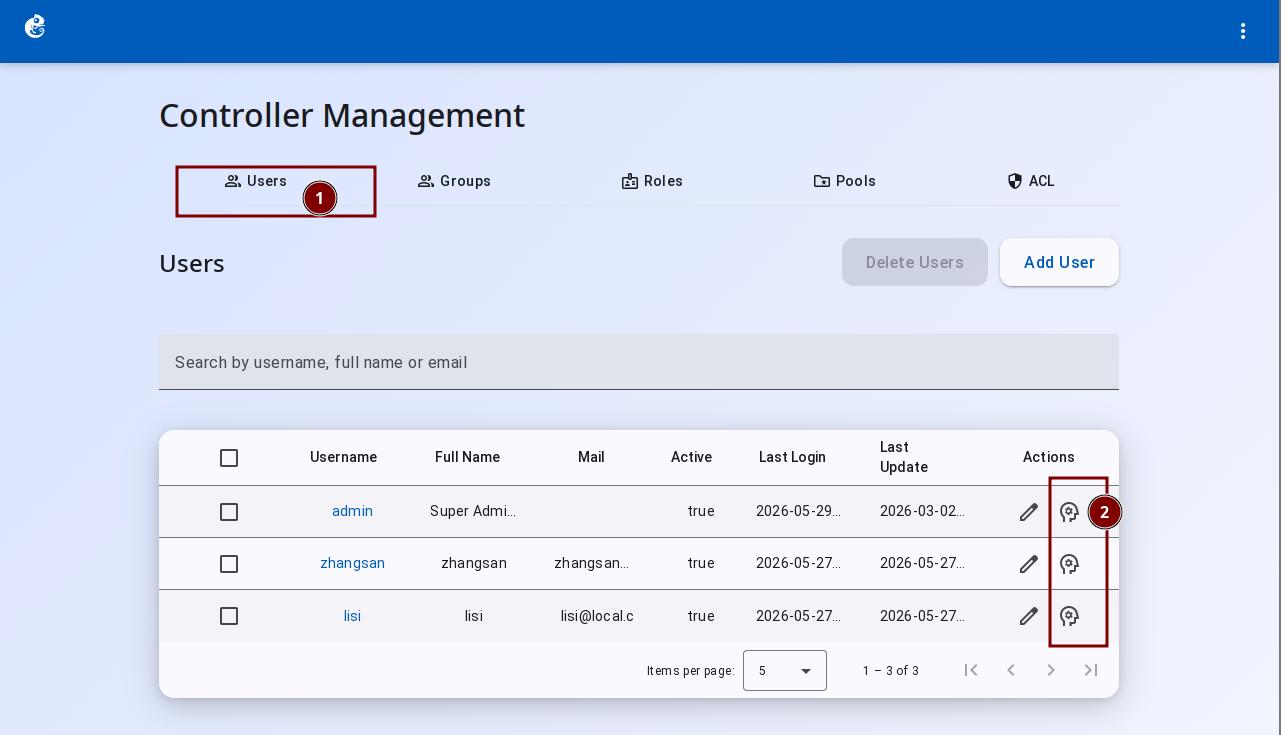
Click the Users tab to configure AI Profile for different users.
Configure for Groups
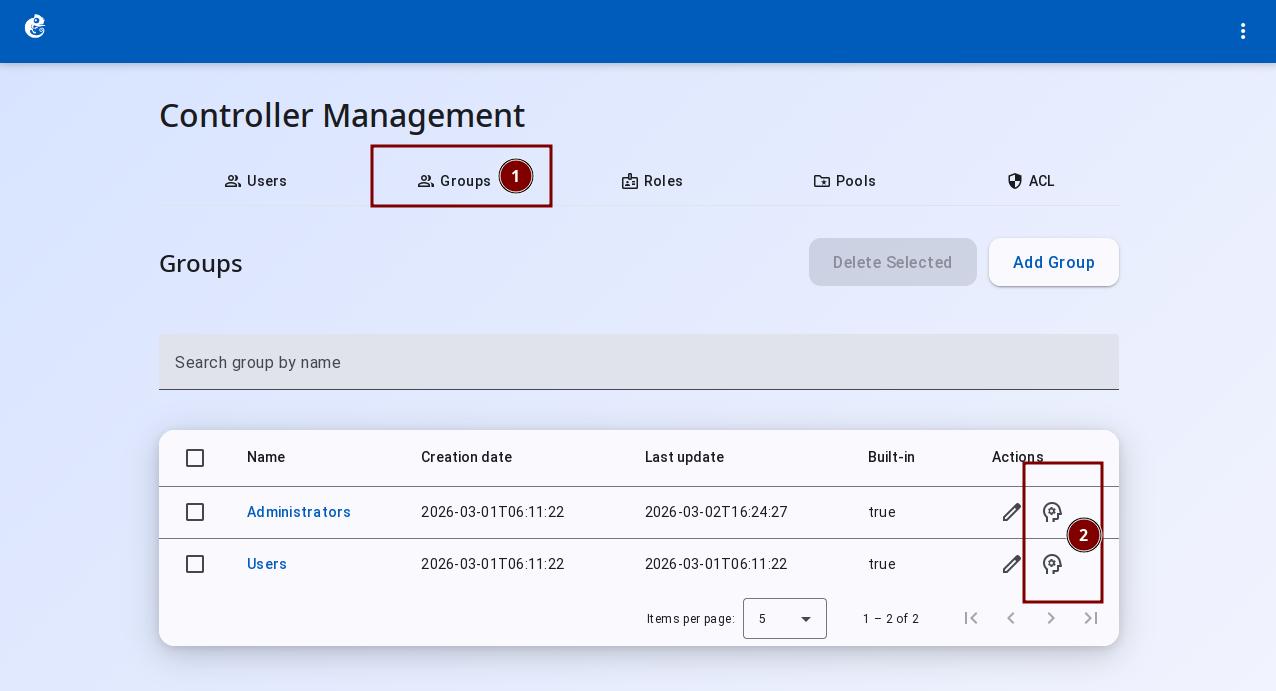
Click the Groups tab to configure AI Profile for different user groups.
After group configuration, regular users who join the group can use the group's AI Profile (currently only the default AI Profile of the group), or use their own AI Profile.
Configuration Parameters
- On the
AI Profilescreen, click theNew Configurationbutton.
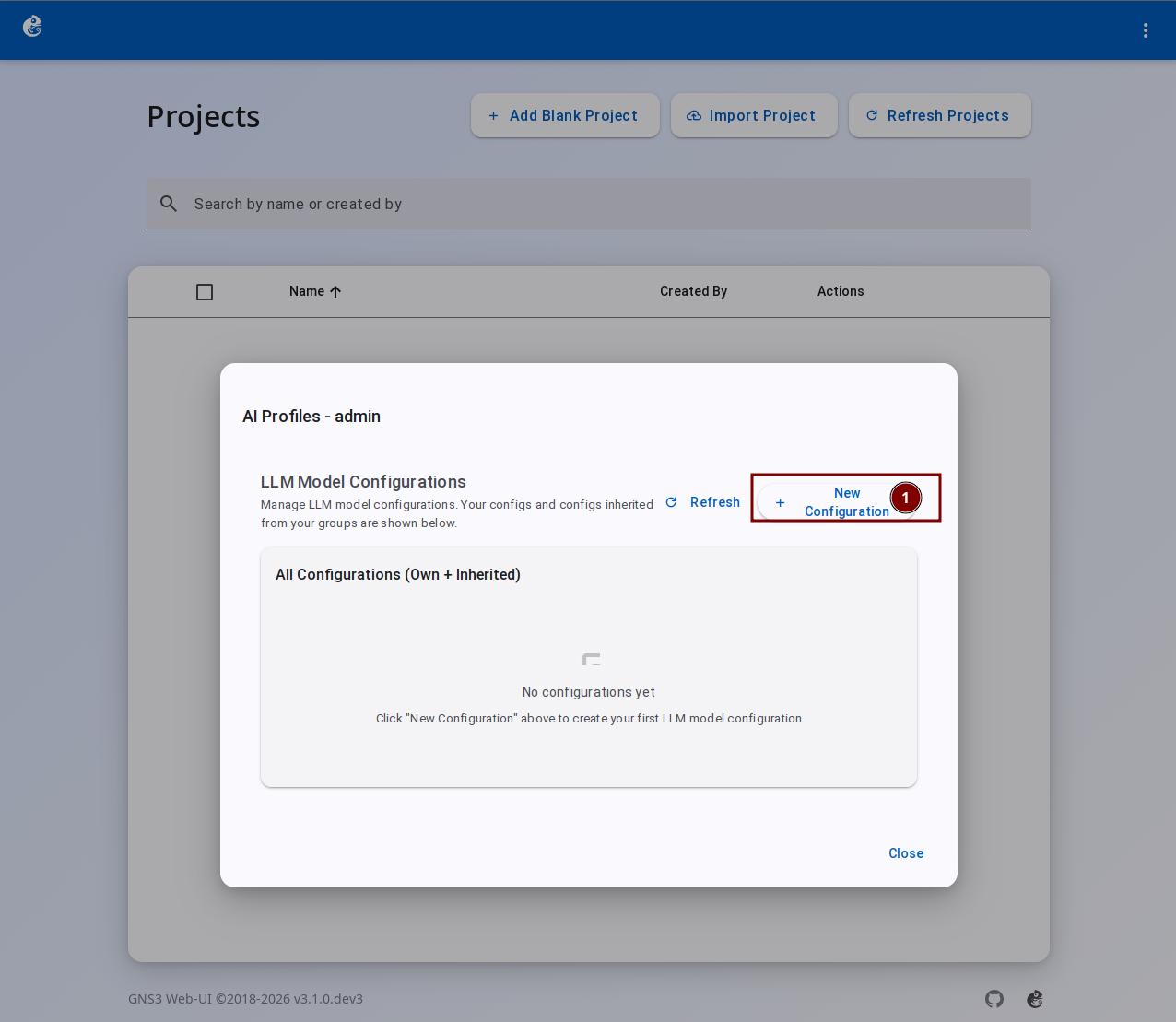
On the Create LLM Model Configuration page, select the Base Models tab, and enter the following:
- Configuration Name — The name of your configuration
- Select LLM provider — Choose an LLM provider (options are OpenRouter and DeepSeek)
- Model Name — The model name
- OpenRouter offers quick selection for x-ai / z-ai / openai / google / anthropic
- DeepSeek offers quick selection for deepseek-v4-flash / deepseek-v4-pro
Compatible with large language models that support the OpenAI API format. If your model provider is compatible with the OpenAI API format (such as vLLM, Ollama, etc.), you can fill in the corresponding API endpoint in Custom Mode.
- API Key — Enter your API Key
- Copilot Mode — AI Assistant mode
- Teaching Assistant
- Lab Automation Assistant
Custom Mode has more configuration options. It is good for users with some experience. This page has field documentation to help you.
After filling in the fields, click the Create button.
- Encrypted using Python's
cryptography.fernetmodule (AES-128-CBC algorithm), with the key file in the same directory as the configuration file - API Key is encrypted before being stored in the database. All API query endpoints return
api_key: null - The system only decrypts the key internally when the AI Assistant needs to make an API call
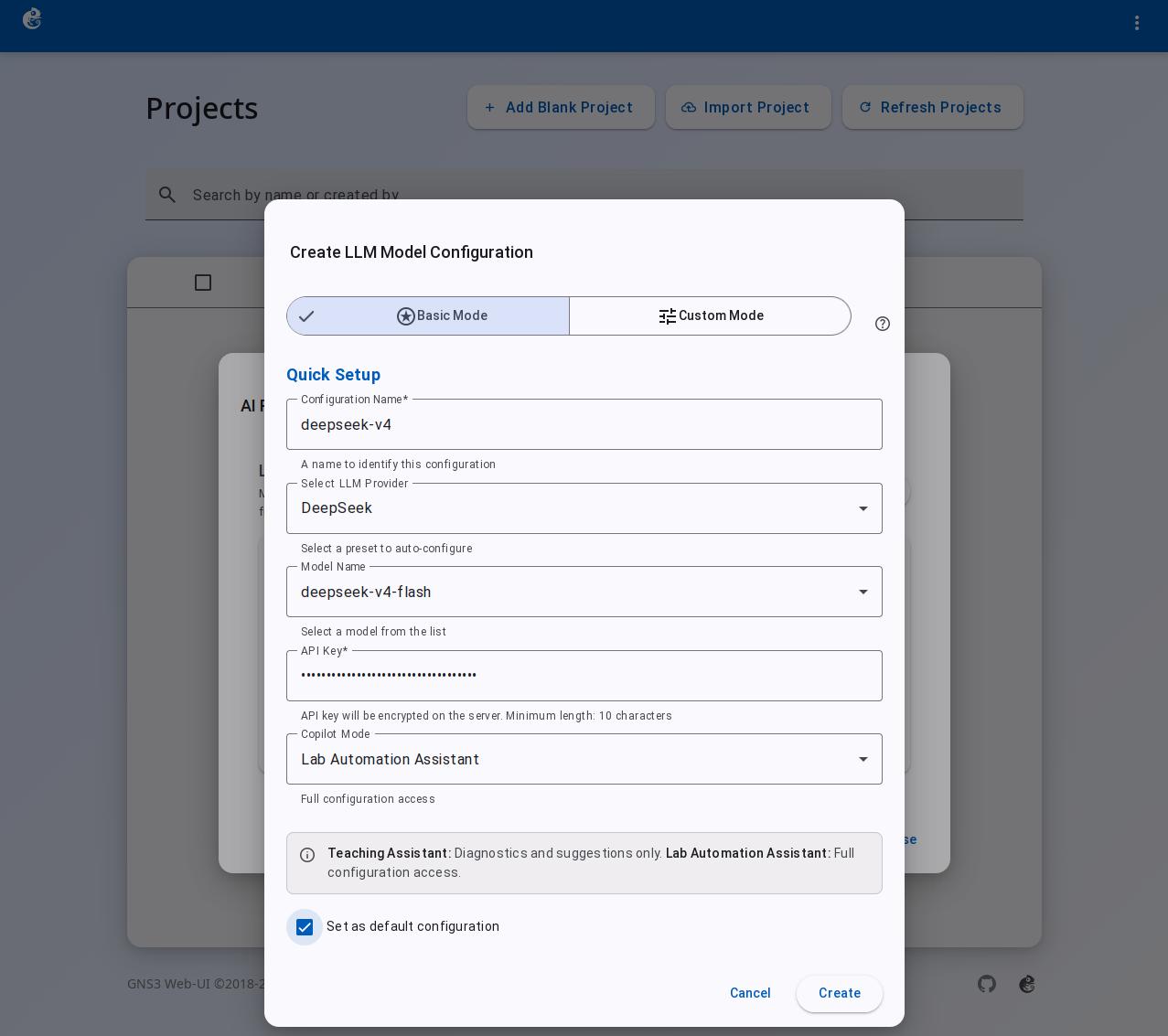
After creation, it will look like the image below.
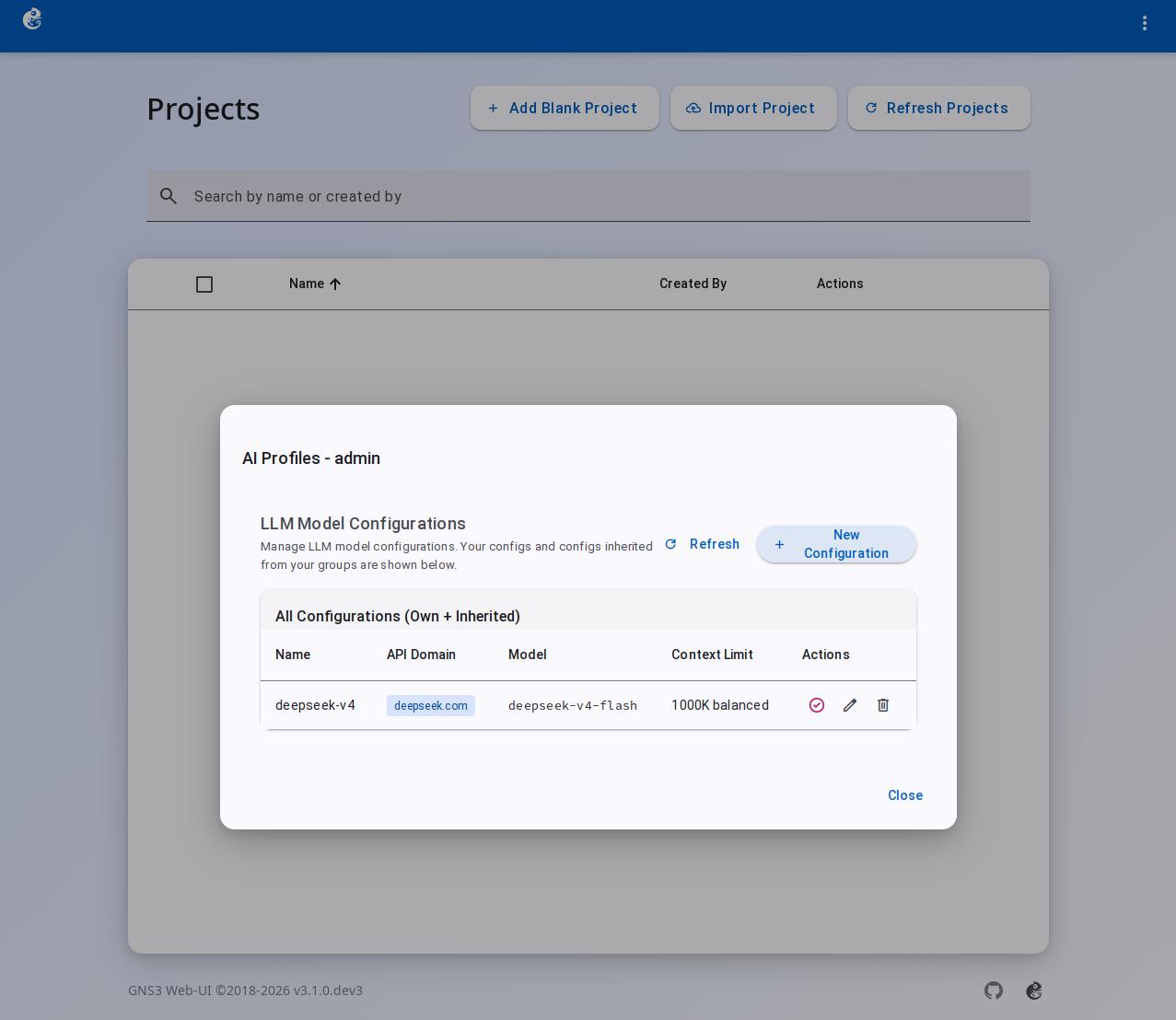
Use the AI Assistant in a Project Topology
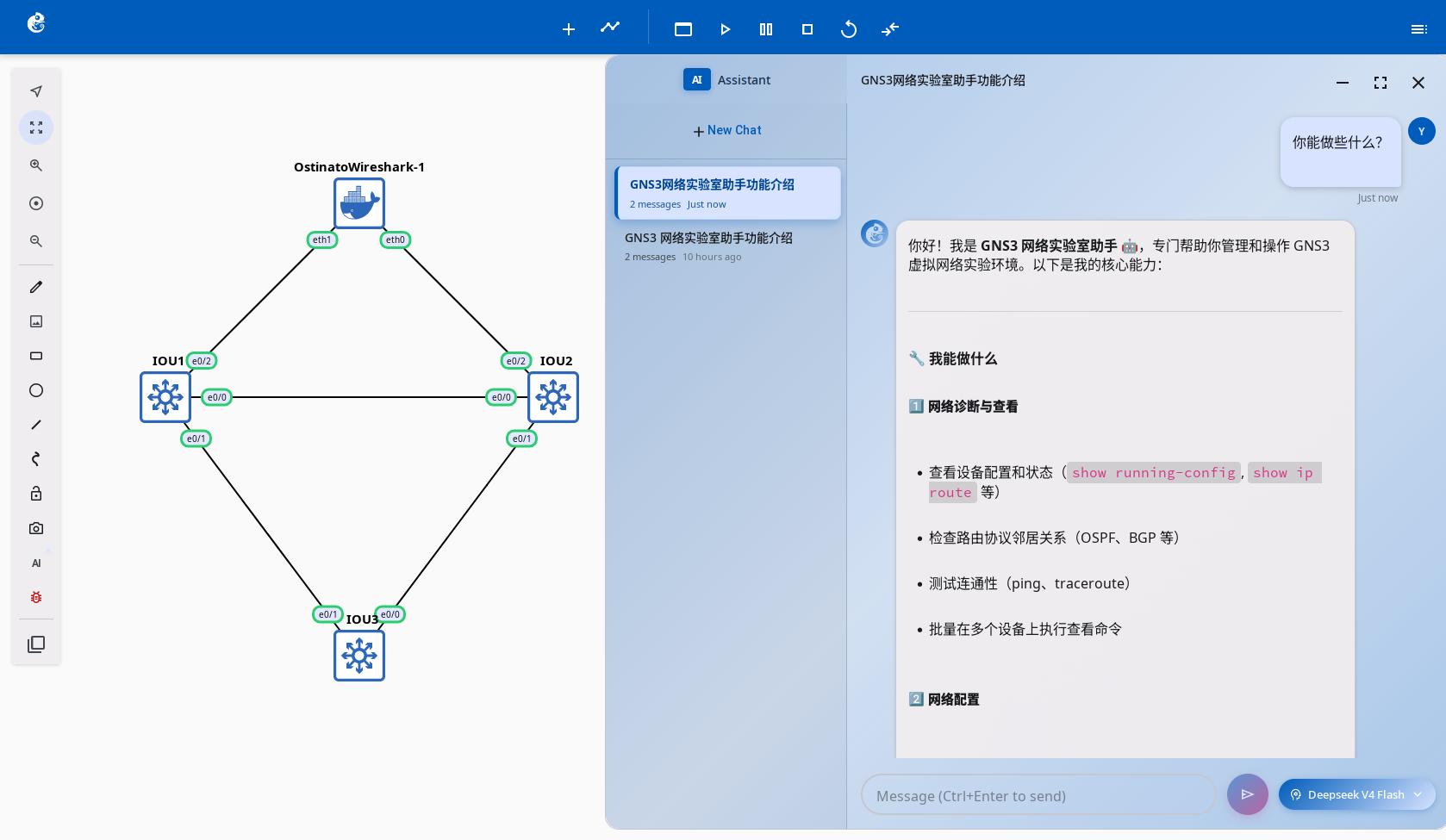
- On the project topology page, click the AI button on the left to open the AI Assistant. Next to the input box on the AI Assistant page, you can click to select the configured model and assistant mode.
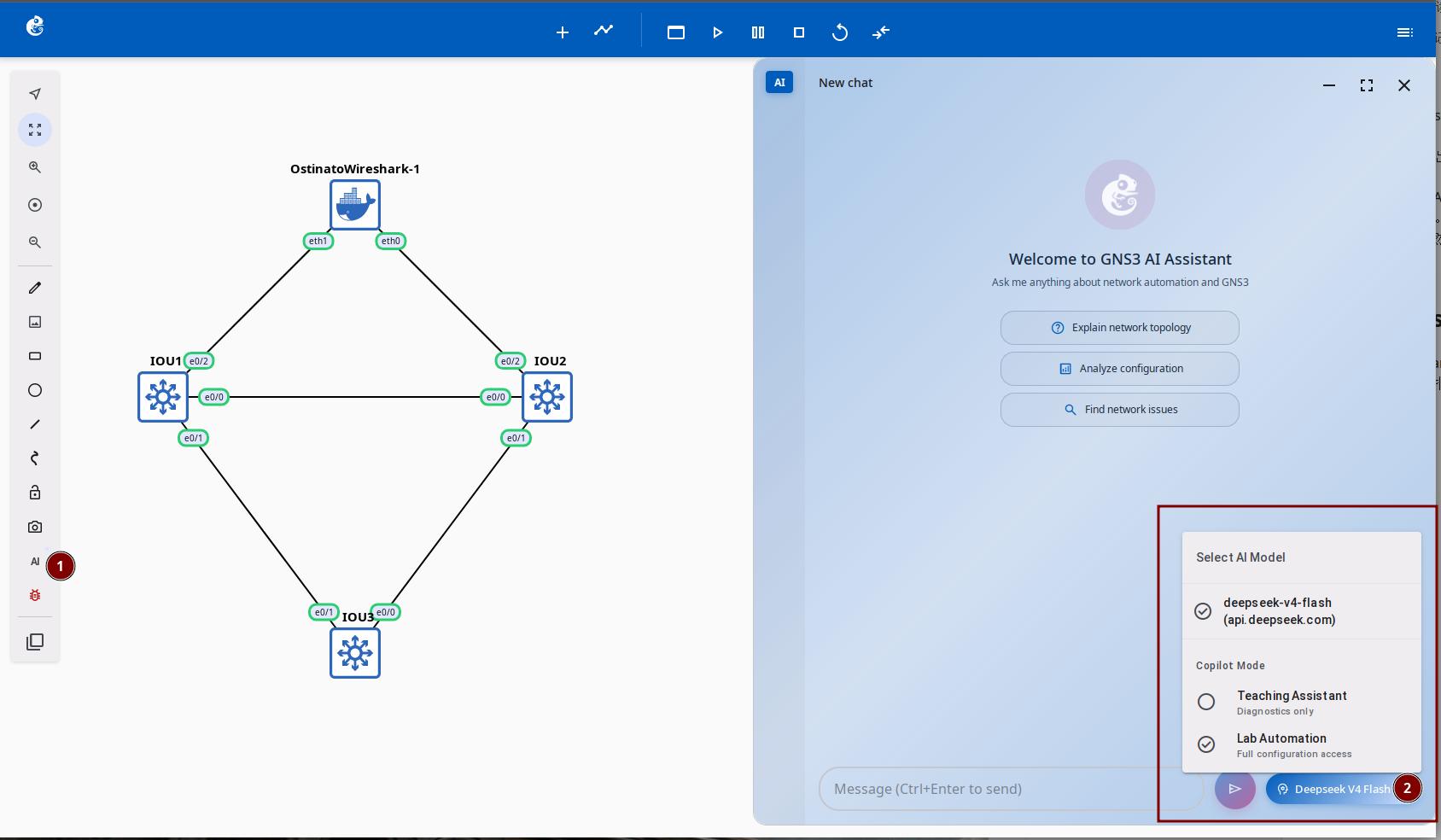
- The sidebar of the AI Assistant shows your chat history.
Emulator Configuration
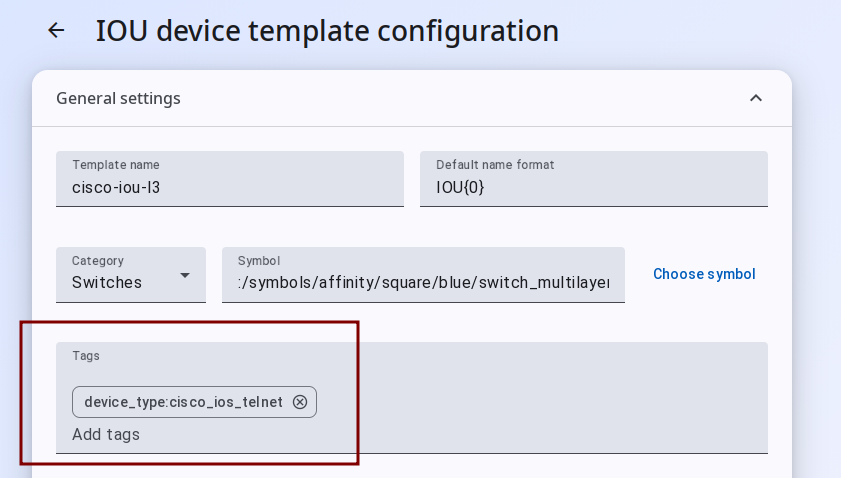
You need to add Tags to your emulators. The AI Assistant uses the device_type tag to identify device types and call appropriate configuration skills.
We mainly test with the following device types:
- Cisco IOS —
device_type:cisco_ios_telnet— Configuration command generation is most mature and smooth - Huawei CE —
device_type:gns3_huawei_telnet_ce— Requires accurate skills configuration - Ruijie —
device_type:gns3_ruijie_telnet— Requires accurate skills configuration - VPCS —
device_type:gns3_vpcs_telnet— Requires accurate skills configuration
For more supported Telnet device types, see: GNS3 Server - Netmiko Supported Devices
Usage Scenarios
AI Assistant provides two core modes for different network operations and learning scenarios.
Teaching Assistant Mode
The Teaching Assistant mode is ideal for learning and troubleshooting. You can interact with the AI assistant using natural language to get answers and guidance on network technical issues.
Example Usage:
-
Open the AI Assistant panel in the project topology and select
Select AI ModeasTeaching Assistant. -
Describe your needs in the input box, for example:
- "Explain the OSPF neighbor establishment process in this topology"
- "Check the routing table of device R1"
- "Why can't PC1 ping PC2?"
-
The AI assistant automatically analyzes the topology, connects to devices to run diagnostic commands, and provides detailed explanations.
📺 Watch the Video Tutorial - Follow along to see the Teaching Assistant mode in action
Lab Automation Assistant Mode
The Lab Automation Assistant mode is suitable for batch configuration and lab automation. You can describe configuration goals in natural language, and the AI assistant will automatically generate and execute device configuration commands.
Example Usage:
-
In the AI Assistant panel, switch
Select AI ModetoLab Automation Assistant. -
Enter your automation task description, for example:
- "Create VLAN 10, 20, 30 on all switches"
- "Configure OSPF area 0 between R1 and R3"
- "Assign all interfaces of PC1 through PC5 to VLAN 10"
-
The AI assistant parses your requirements, generates corresponding device configuration commands, and deploys them to devices.
HITL (Human-in-the-Loop) is not yet implemented, so AI will not perform confirmation operations during execution.
Architecture Overview
Overall Architecture
API Endpoints
| Endpoint | Function |
|---|---|
POST /v3/projects/{pid}/chat/stream | Streaming conversation (SSE), supports three copilot modes |
POST /v3/projects/{pid}/chat/inject | Fault injection entry, auto-switches to troubleshooting_injection mode |
GET /v3/projects/{pid}/chat/sessions | List sessions (supports filtering, pagination) |
DELETE /v3/projects/{pid}/chat/sessions/{sid} | Delete session |
PATCH /v3/projects/{pid}/chat/sessions/{sid} | Update session (rename, pin) |
POST /v3/projects/{pid}/chat/sessions/{sid}/abort | Abort an active session |
LangGraph Agent Workflow
Three Copilot Modes
Mode Comparison
| Mode | Tool Scope | Use Case |
|---|---|---|
teaching_assistant (default) | Diagnostic read-only + packet analysis + node management | Teaching demos, troubleshooting guidance |
lab_automation_assistant | All tools (including config changes) | Lab automation, device configuration |
troubleshooting_injection | Fault injection tool set | Troubleshooting practice, fault simulation |
Tool Binding Details
| Tool | teaching_assistant | lab_automation_assistant | troubleshooting_injection |
|---|---|---|---|
GNS3TemplateTool get templates | ✓ | ✓ | |
GNS3CreateNodeTool create nodes | ✓ | ✓ | |
GNS3LinkTool create links | ✓ | ✓ | |
GNS3StartNodeTool start nodes | ✓ | ✓ | |
GNS3UpdateNodeNameTool rename | ✓ | ✓ | |
GNS3StopNodeTool stop nodes | ✓ | ||
GNS3SuspendNodeTool suspend nodes | ✓ | ||
ExecuteMultipleDeviceCommands read-only commands | ✓ | ✓ | ✓ |
ExecuteMultipleDeviceConfigCommands config commands | ✓ | ✓ | |
VPCSCommands VPCS commands | ✓ | ||
PacketAnalysisTool live packet analysis | ✓ | ✓ | |
PacketAnalysisSkillsTool protocol knowledge | ✓ | ✓ | |
DeviceSkillsTool device skills | ✓ | ✓ | |
GNS3PacketFilterTool link filters | ✓ | ||
InjectionSkillsTool fault injection skills | ✓ | ||
GNS3TopologyTool topology info | ✓ |
The mode is selected in the llm_call node via copilot_mode, which picks the corresponding tool list and binds it to the LLM model instance through create_base_model_with_tools(mode_tools, llm_config).
Context Window Management
- Accurate token counting via tiktoken (
cl100k_base) - Three trimming strategies: conservative / balanced / aggressive
- Auto-injects
{{topology_info}}into System Prompt
Session Management
- Per-project independent SQLite database (
gns3-copilot/copilot_checkpoints.db) - Supports pin, rename, delete, history query
- Auto-records token usage, message count, LLM call count (currently not displayed in the Web UI)
LLM Config System
| Feature | Description |
|---|---|
| User-level configs | Each user can independently configure provider / model / api_key |
| Group inheritance | Users auto-inherit group config when no personal config is set |
| API key encryption | Auto-encrypted at database storage |
| Optimistic locking | version field prevents concurrent modification conflicts |
Key Design Points
- Project-level Isolation — Each GNS3 project has its own Agent instance and SQLite storage
- ContextVars Safe Passing — JWT token, API key exist only in memory, auto-cleared when request ends
- LangGraph StateGraph — Custom nodes + conditional edges, supports ReAct loop and recursion limits
- SSE Streaming — Real-time push of content / tool_call / tool_start / tool_end / error / done events
- Hot Reload — System Prompt, Skills, Protocols all support runtime reload
- Mode-based Tool Sets — Three copilot modes bind different tools, safely isolated by scenario
Feature Contributor
AI Assistant feature was developed and contributed by YueGuobin.
- LinkedIn: Guobin Yue
License
This document is licensed under CC BY-NC-ND 4.0 (Attribution-NonCommercial-NoDerivatives). Author: YueGuobin