How to use settings page
On the project home page, click the three-dot button at the top right and select "Settings".
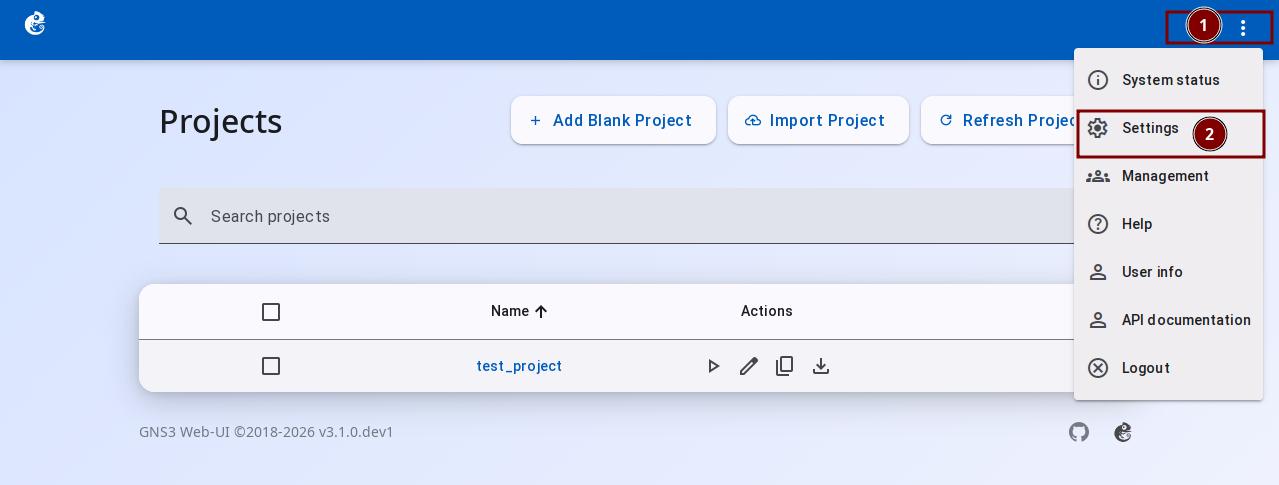
The Settings page is the user preferences center for the GNS3 Web UI. It lets you customize local behavior, appearance theme, and system update options. Settings are saved in the browser's localStorage and only affect the current browser.
The Settings page has three collapsible sections.
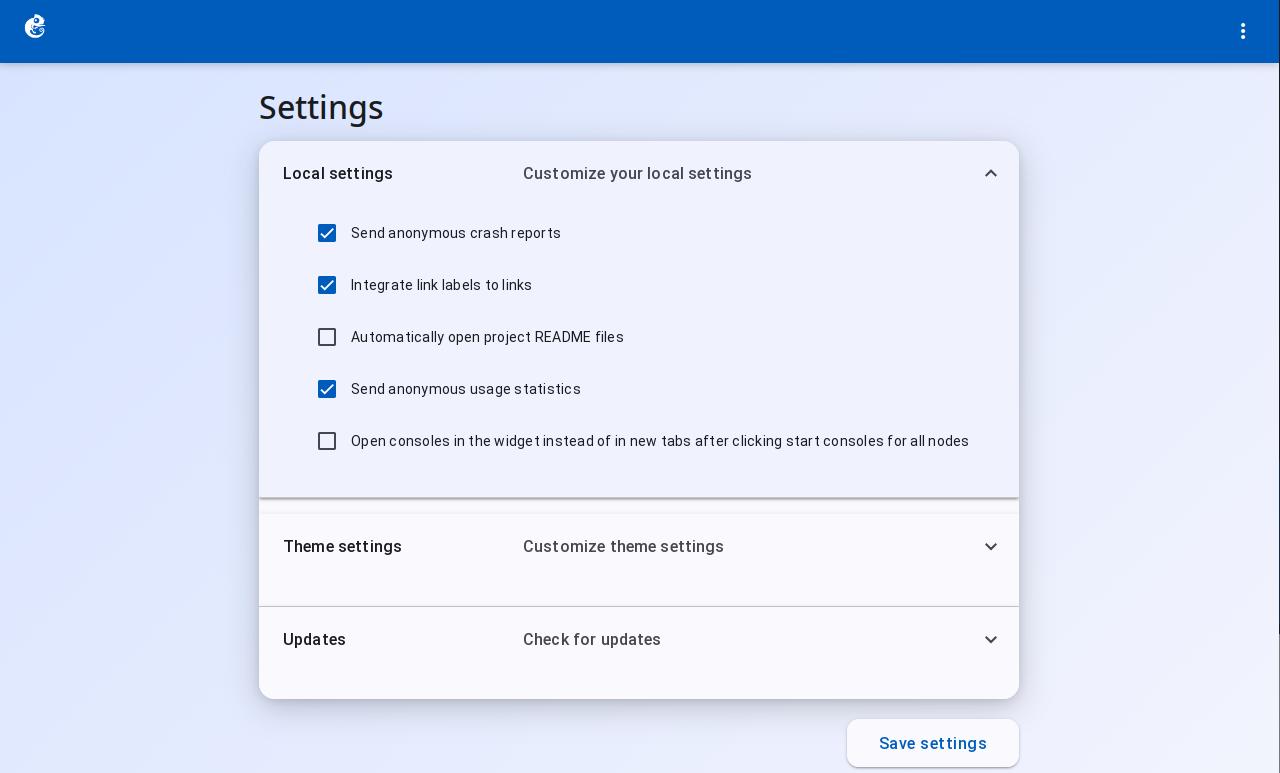
1. Local Settings
This section contains options that affect how the browser behaves locally:
- Send anonymous crash reports: When enabled, the system sends error reports automatically to help improve software stability
- Integrate link labels to links: Shows labels on links to make port connections easier to identify
- Automatically open project README files: Opens the project README file automatically
- Send anonymous usage statistics: Sends anonymous usage data to help understand feature usage
- Open consoles in the widget instead of in new tabs: After clicking "Start all node consoles", opens consoles inside the current widget instead of in new tabs
2. Theme Settings
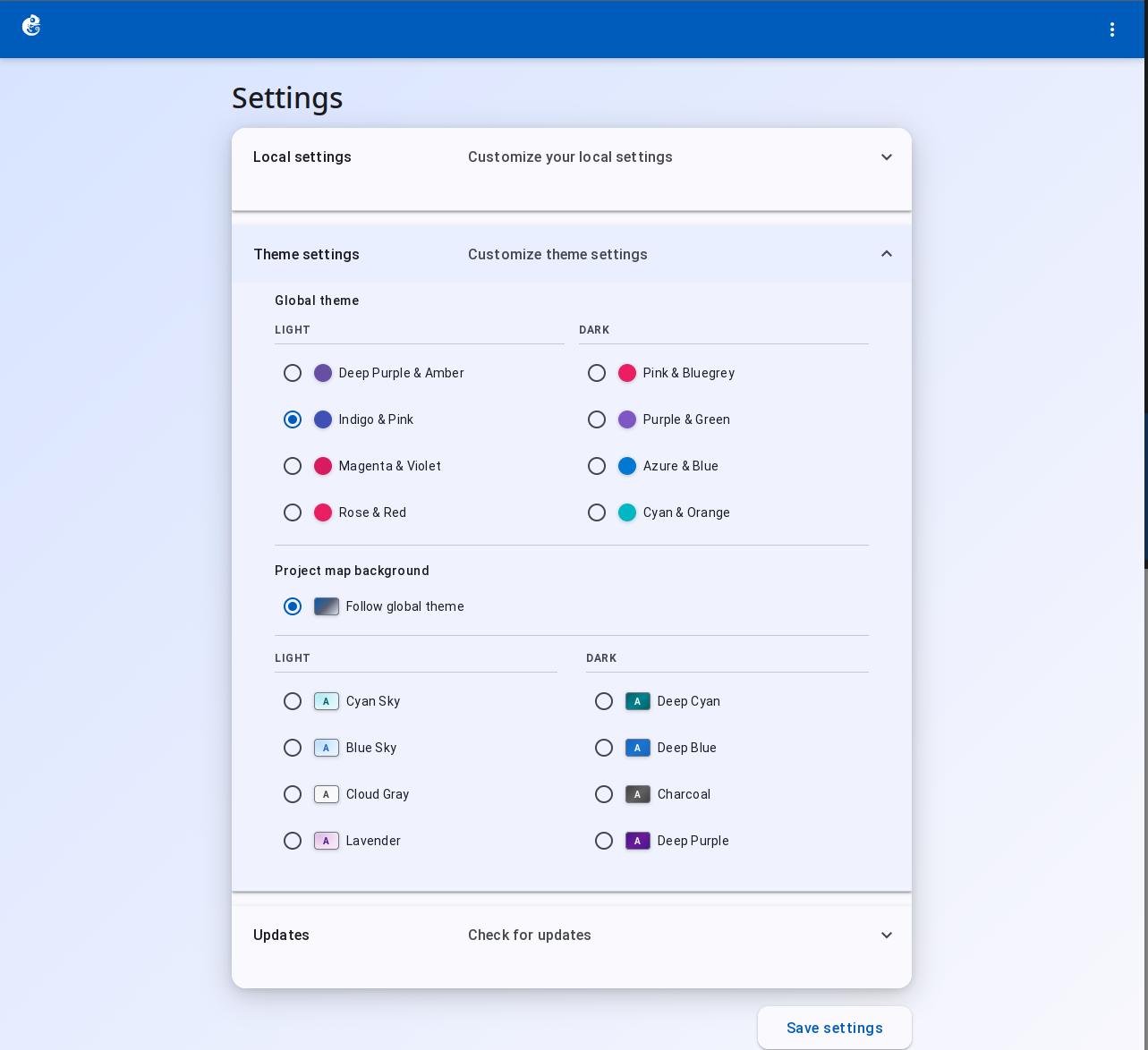
This section controls the visual appearance of the GNS3 Web UI, including the global theme and project map background.
Global theme
Controls the color scheme of the whole Web UI. There are two modes: Light and Dark. Each mode has several preset themes to choose from.
Project map background
Controls the background style of the topology canvas:
- Auto mode: The system chooses a background that fits the current theme automatically
- Light background options: Several light backgrounds to choose from
- Dark background options: Several dark backgrounds to choose from
3. Updates
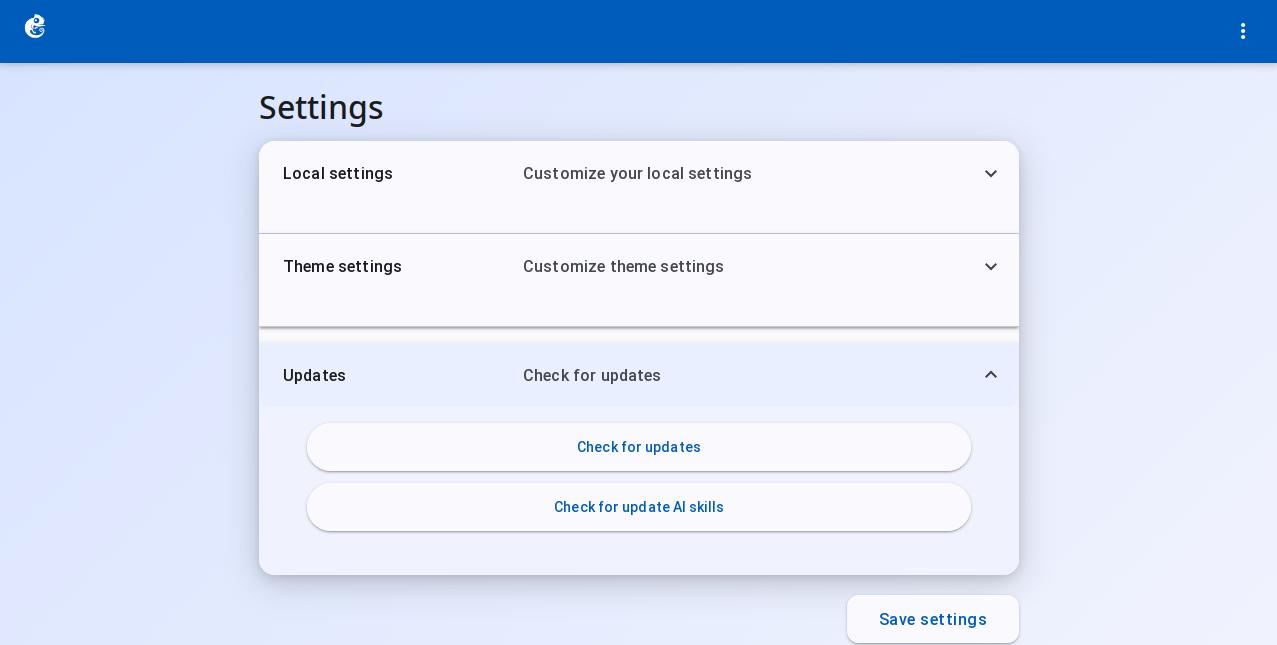
This section lets you check for software updates and AI feature updates:
- Check for updates: Checks for GNS3 software updates. Opens the GNS3 website to show the latest version information.
- Check for update AI skills: Checks for AI skill package updates and downloads the latest AI skills package from the GitHub repository (https://github.com/gns3/gns3-skills)
Saving Settings
At the bottom of the page there is a "Save settings" button. Click it to save all current settings to the browser's localStorage. A message "Settings have been saved." will appear.
Settings Persistence
All settings are saved in the browser's localStorage. They only affect the current browser and do not sync to other devices or browsers.