How to add compute nodes
This document describes the minimum setup needed for GNS3 controller and remote compute nodes.
Architecture Overview
- Compute – Runs single nodes (QEMU, Docker, etc.) and provides resource monitoring
- Controller – Manages multiple compute nodes, projects, and provides the REST API
- Database – The controller uses SQLite to store projects, nodes, and compute node registration info
Minimum Configuration
1. Compute Node Configuration
In the GNS3 VM, the config file is at /opt/gns3/server/gns3_server.conf.
For Linux users who install manually, the default config file is at ~/.config/GNS3/3.1/gns3_server.conf.
[Server]
host = 0.0.0.0
port = 3080
compute_username = gns3
compute_password = gns3
2. Controller Node Configuration
In the GNS3 VM, the config file is at /opt/gns3/server/gns3_server.conf.
For Linux users who install manually, the default config file is at ~/.config/GNS3/3.1/gns3_server.conf.
[Server]
host = 192.168.56.9
port = 3080
compute_username = gns3
compute_password = gns3
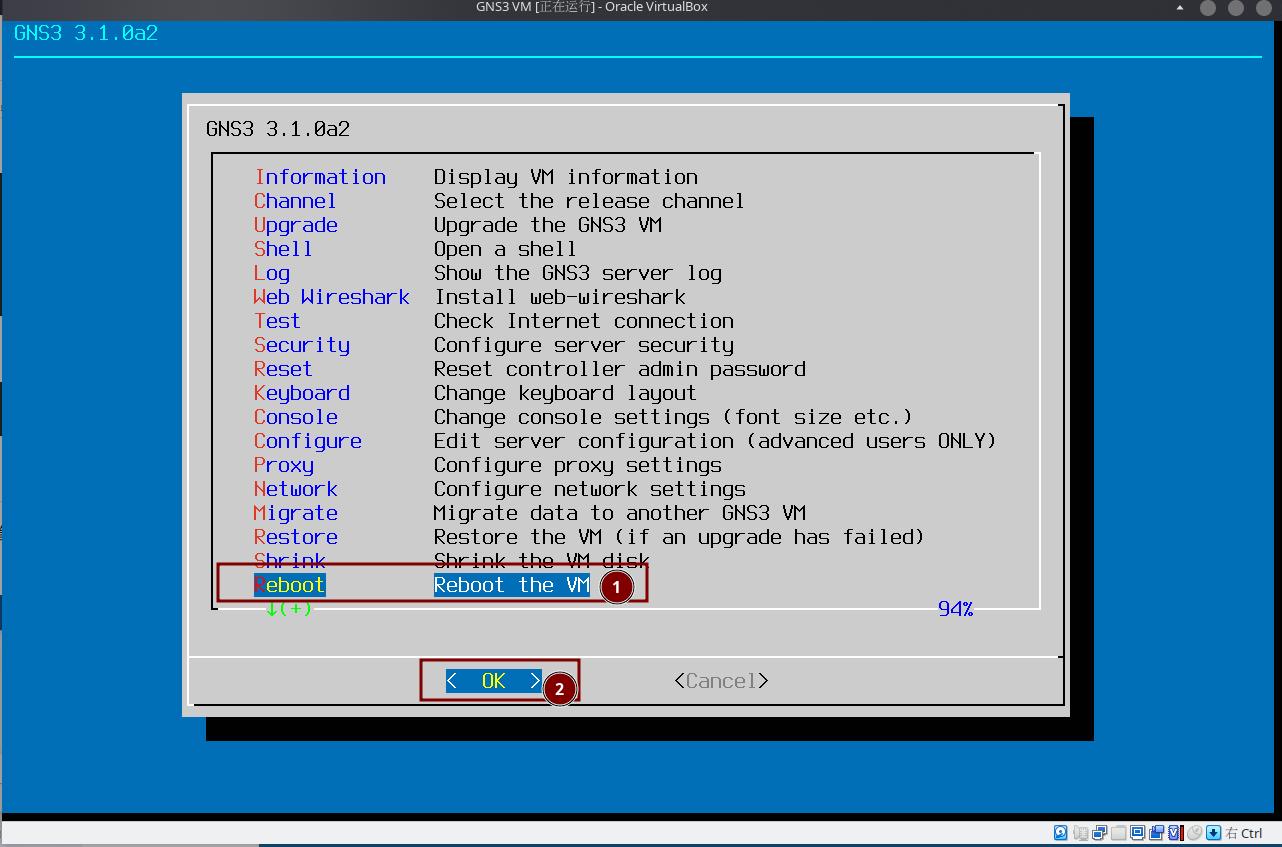
3. Restart GNS3 Server
After you finish the configuration, restart the GNS3 Server to apply the changes.
4. Register the Compute Node to the Controller
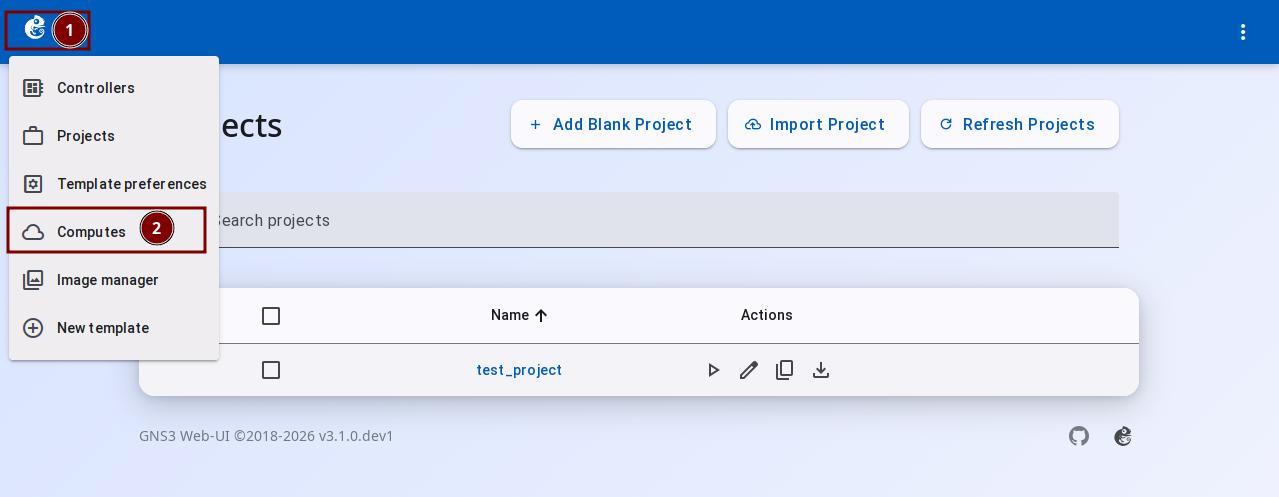
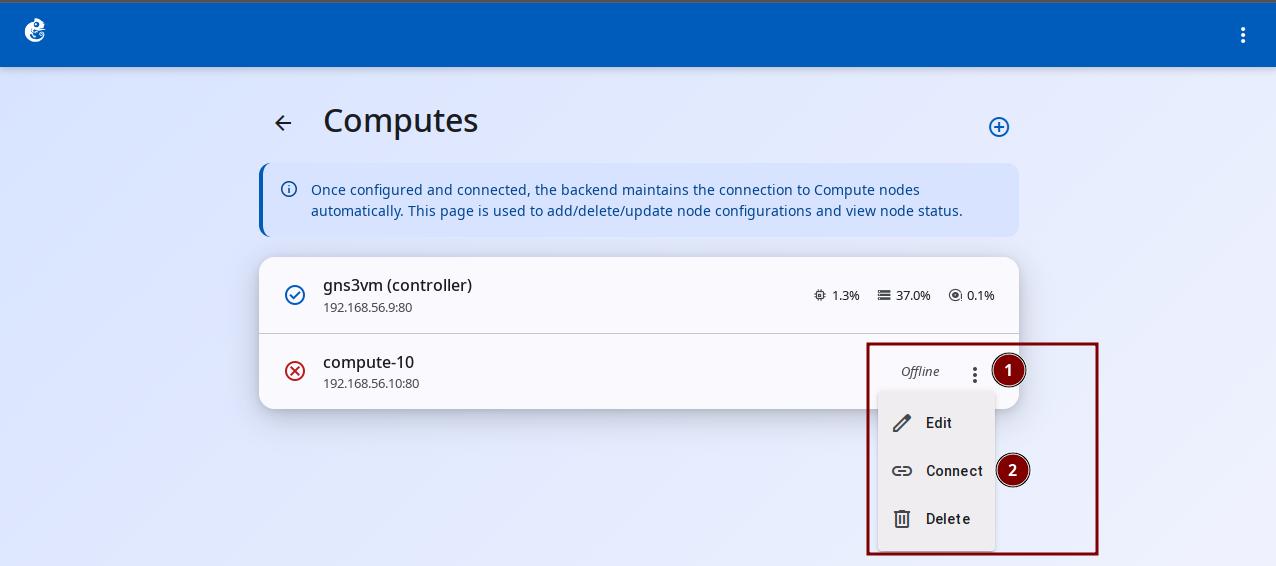
On the project home page, click the GNS3 Logo at the top left and select "Compute". Here you can see and manage all compute nodes.
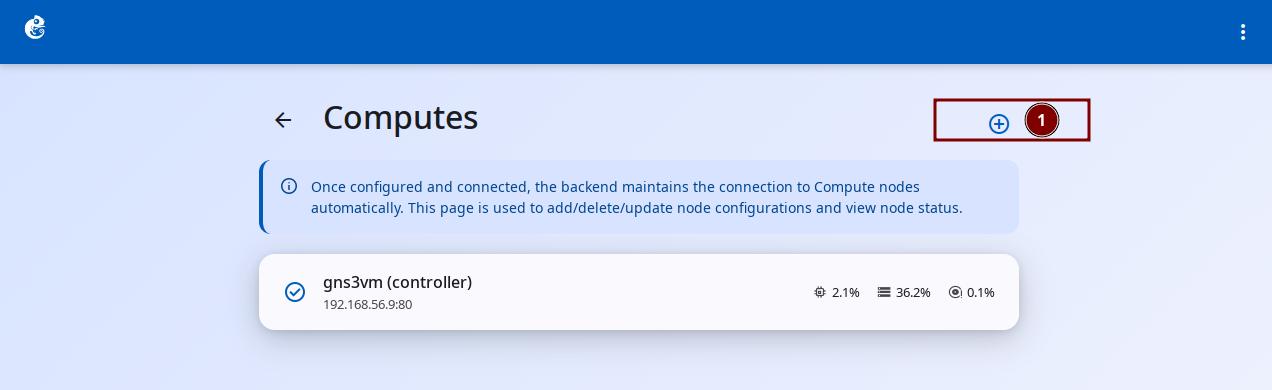
Click the + button at the top right to add a new compute node.
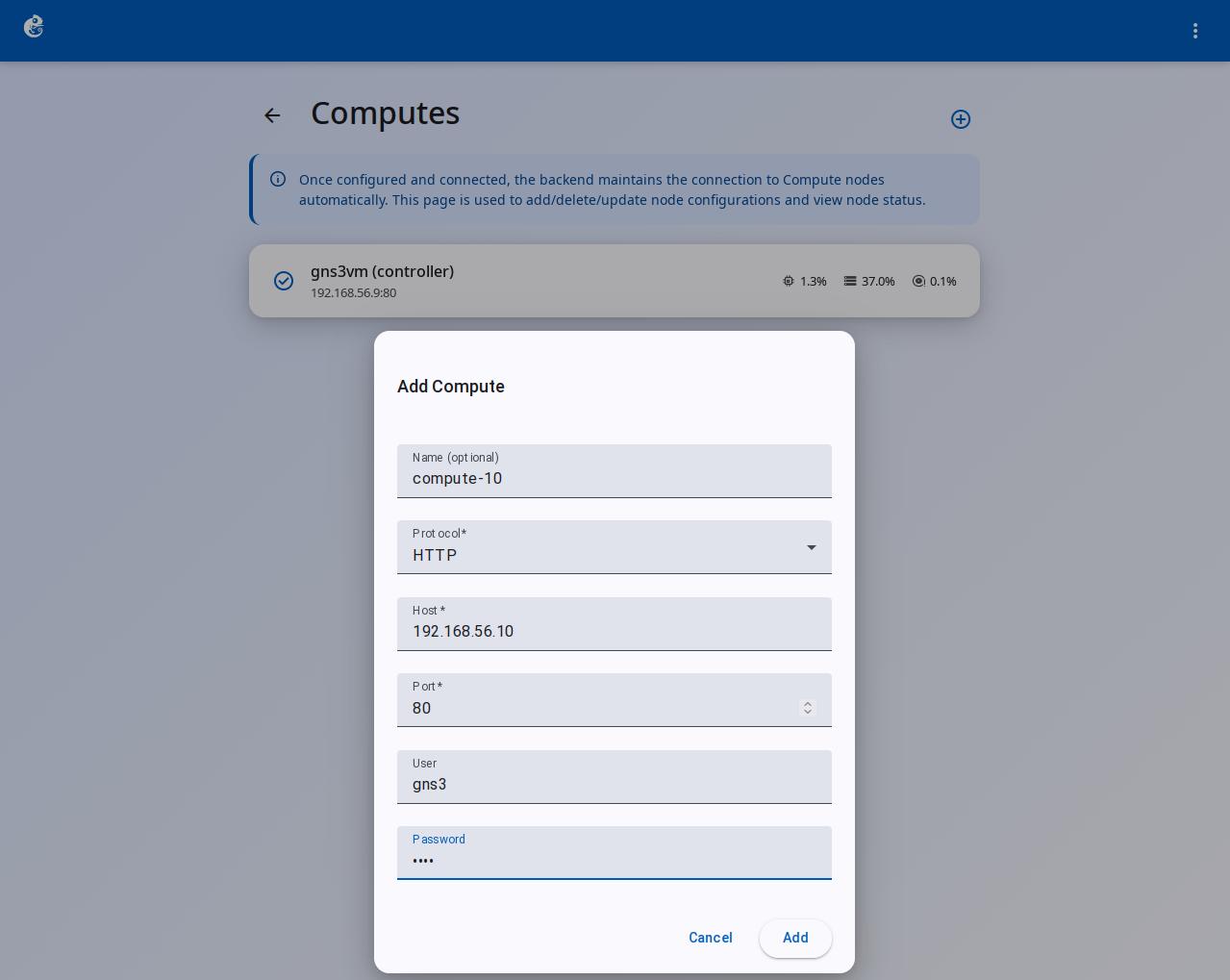
Fill in the fields below and click the "Add" button:
| Field | Type | Default | Description |
|---|---|---|---|
| Name | Text input | empty | A friendly display name for the compute node (optional) |
| Protocol | Dropdown | http | Communication protocol: http or https |
| Host | Text input | empty | Server address (IP or domain name) |
| Port | Number input | 3080 | GNS3 compute service port |
| User | Text input | gns3 | Authentication username |
| Password | Password input | gns3 | Authentication password |
After adding, the compute node shows as offline by default. Click the three-dot button on the right and select "Connect".
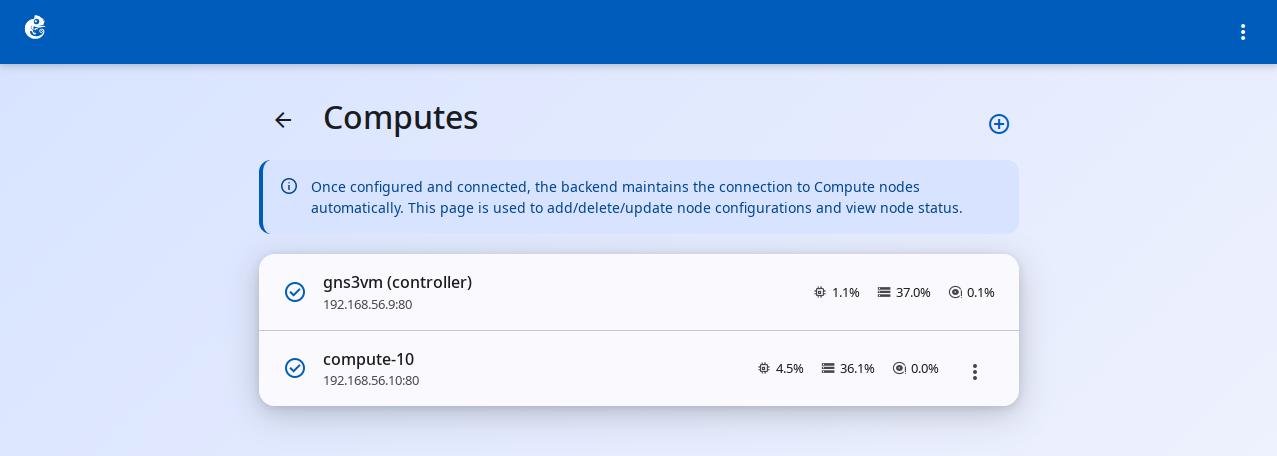
After a successful connection, you will see the node's CPU, memory, and disk usage in real time.
Important Notes
Host Configuration
- Controller
host: If you set it to0.0.0.0, the controller registers itself as127.0.0.1. This breaks connections to remote compute nodes. - Symptom: Even if the compute node is on the same network, you will see the error "No common subnet for compute X (controller) and Y".
- Solution: Always use the real LAN IP address for the controller's
hostfield (for examplehost = 192.168.1.104). - Dynamic IP: If the controller machine uses DHCP, set a static lease on your router or use mDNS (
.localdomain).
Password Configuration
- If you do not set
compute_password, the system will generate a random 16-character password when it starts. - The controller must use the same credentials as the compute node configuration.
Network Requirements
- The controller and compute nodes must be on the same LAN for cross-compute links to work.
- Cross-compute links use UDP tunnels, so UDP ports must be open on the network.
Configuration File Locations
- GNS3 VM:
/opt/gns3/server/gns3_server.conf - Linux manual install:
~/.config/GNS3/3.1/gns3_server.conf
Security Note: Docker UsernsMode
Docker containers are configured with UsernsMode: host at runtime, meaning they share the host's user namespace. This means user permissions inside containers correspond directly to the host user space, which introduces potential security risks. Therefore:
- It is not recommended to install gns3server on bare metal; please use the GNS3 VM as the compute node instead
- Be cautious when multiple users share a single GNS3 Server, as
UsernsMode: hostmeans user IDs inside containers are not mapped or isolated from the host
Troubleshooting
401 Unauthorized When Connecting a Compute Node
- Check that the
compute_usernameandcompute_passwordon the compute node match what the API sends. - Verify that the compute node's config file loads correctly.
- Make sure you are using the
[Server]section (not[Controller]).
No Common Subnet Error
If the compute node reports:
Cannot get an IP address on same subnet: No common subnet for compute X (controller) and Y
- Main cause: The controller's
hostis set to0.0.0.0. It registers as127.0.0.1, which the compute node cannot reach. - Check the controller's
/v3/versionendpoint. Ifcontroller_hostshows127.0.0.1, this is the problem. - Set the controller's
hostto its real LAN IP address (for example192.168.1.104). - Make sure both machines are on the same network and can ping each other.
- Check firewall rules to allow TCP/UDP communication on the required ports:
GNS3 Server Port Usage
- Main service port: 80 (GNS3 VM default) / 443 (HTTPS) / 3080 (default)
- Console ports: 5000-10000
- VNC ports: 5900-10000
- UDP communication ports: 10000-30000
All port ranges can be customized in the
gns3_server.confconfiguration file
WebSocket Console Authentication Failure
When connecting to a remote compute node's console through WebSocket, the connection may fail.
Cause: The controller forwards its own compute_username and compute_password when connecting to the compute node's WebSocket endpoint. If the compute node does not have matching credentials, authentication fails.
Solution: Make sure the compute node's config file has matching credentials:
[Server]
enable_http_auth = True
compute_username = gns3
compute_password = your_password
Note: If the compute node's config does not set compute_password clearly, the system will generate a random 16-character password when it starts. Then no external controller can authenticate.