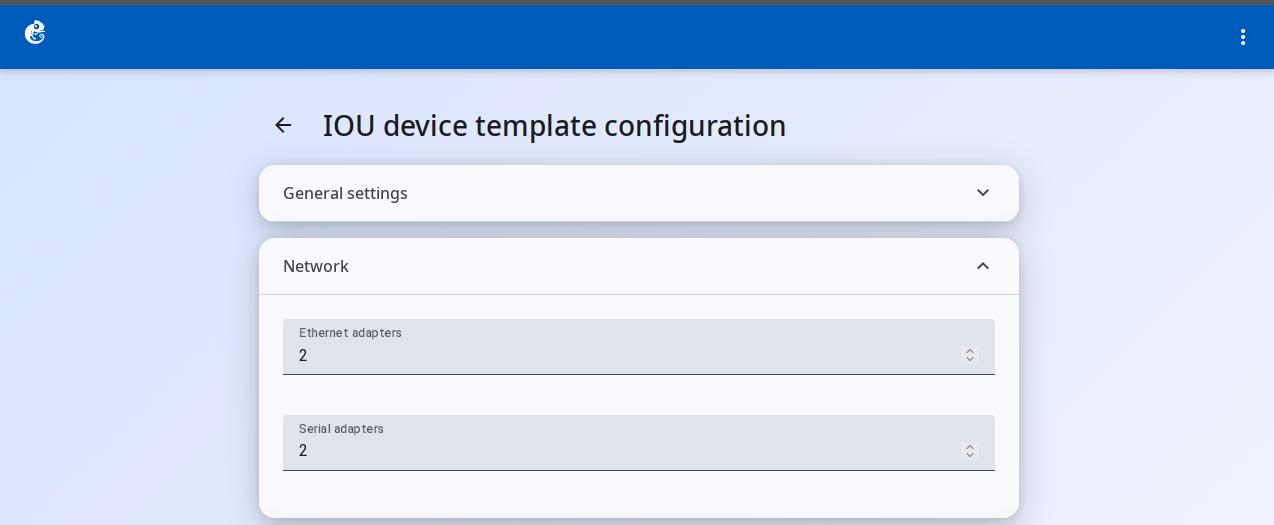
How to configure IOU template preferences
IOU is a native Cisco IOS ELF binary (.iol) that runs directly on Linux. It does not need Dynamips hardware simulation. Its performance is much higher than Dynamips.
Create a Template
-
Click the "IOS on Unix" option to enter.
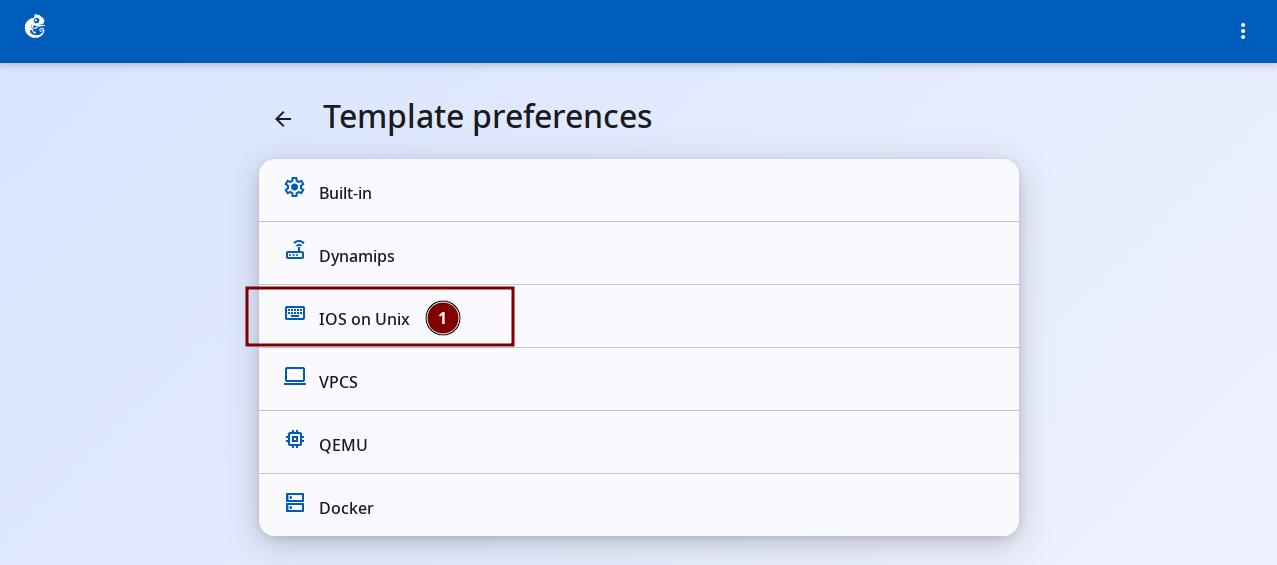
-
Click the + button at the top right to add a new template.
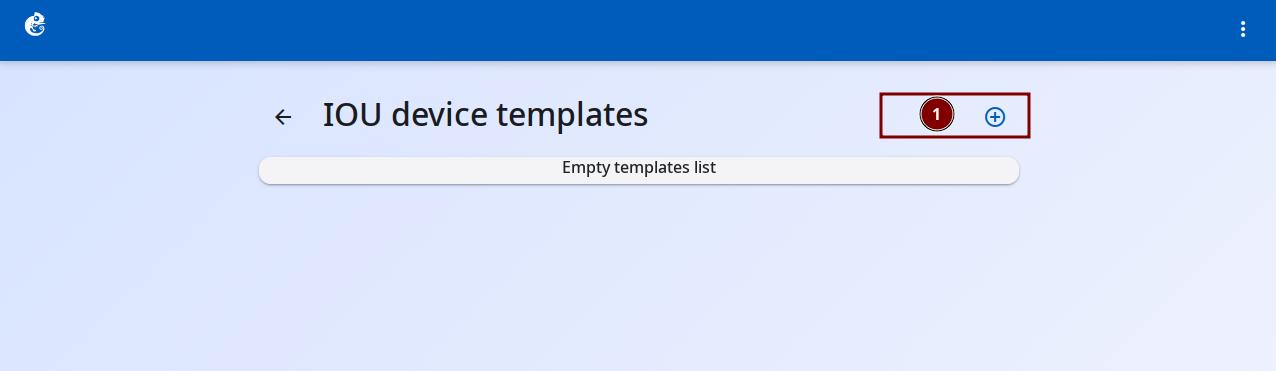
-
Follow the wizard steps. Click "Name".
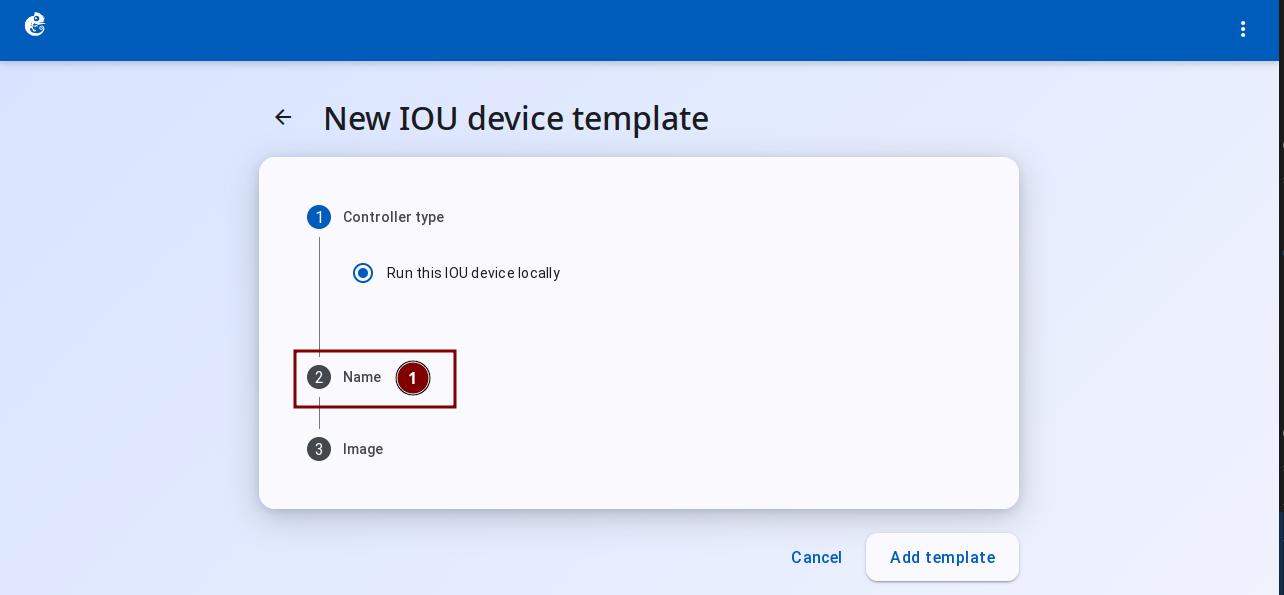
-
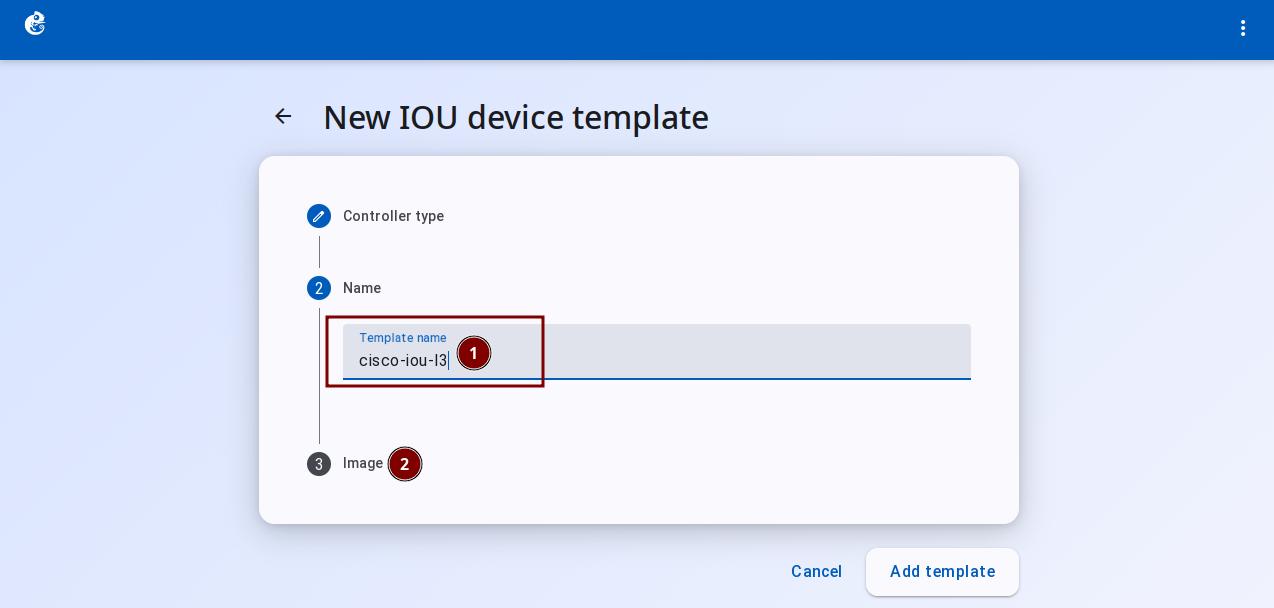
In Name, enter the template name. Then click "Image".
-
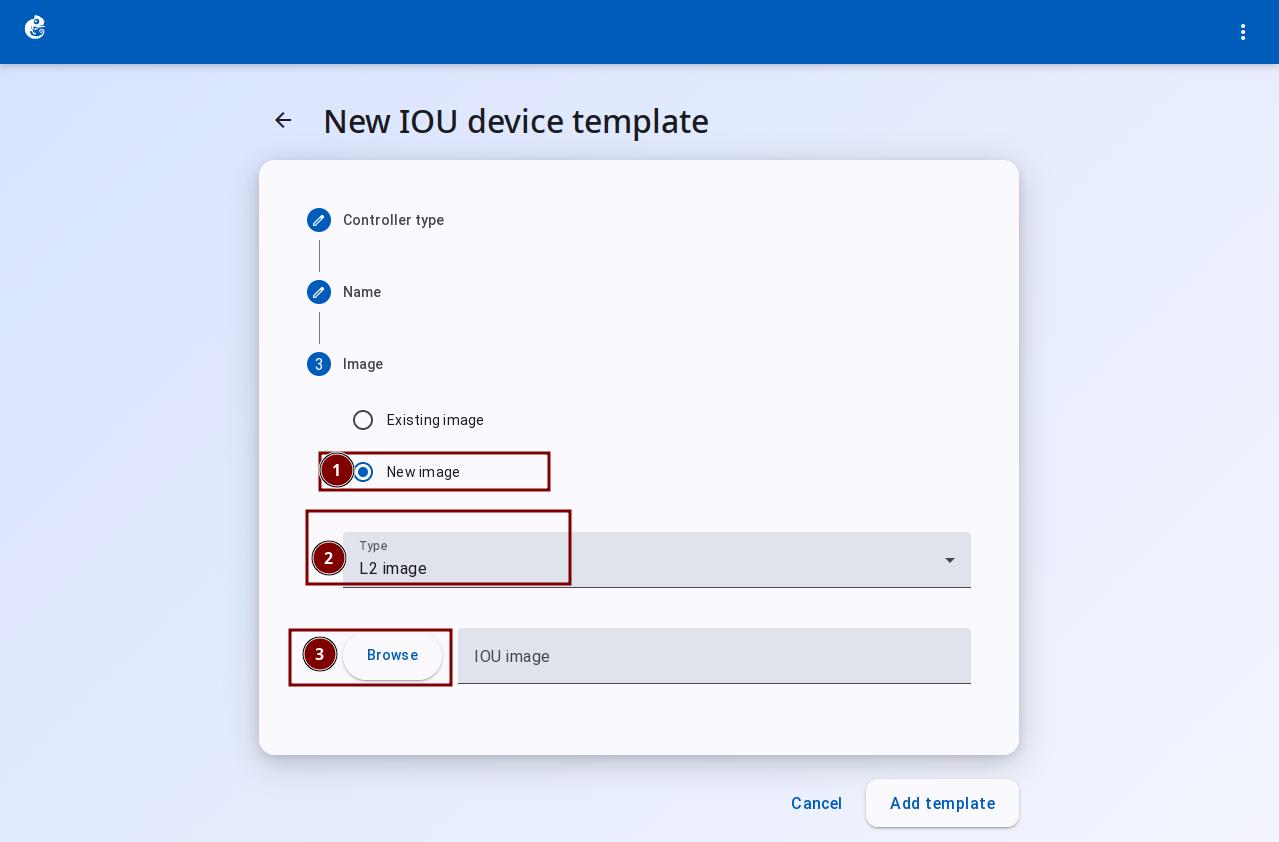
In Image, choose "New Image". Set Type to "L2 Image" or "L3 Image". Then click "Browse" to upload a local image file.
-
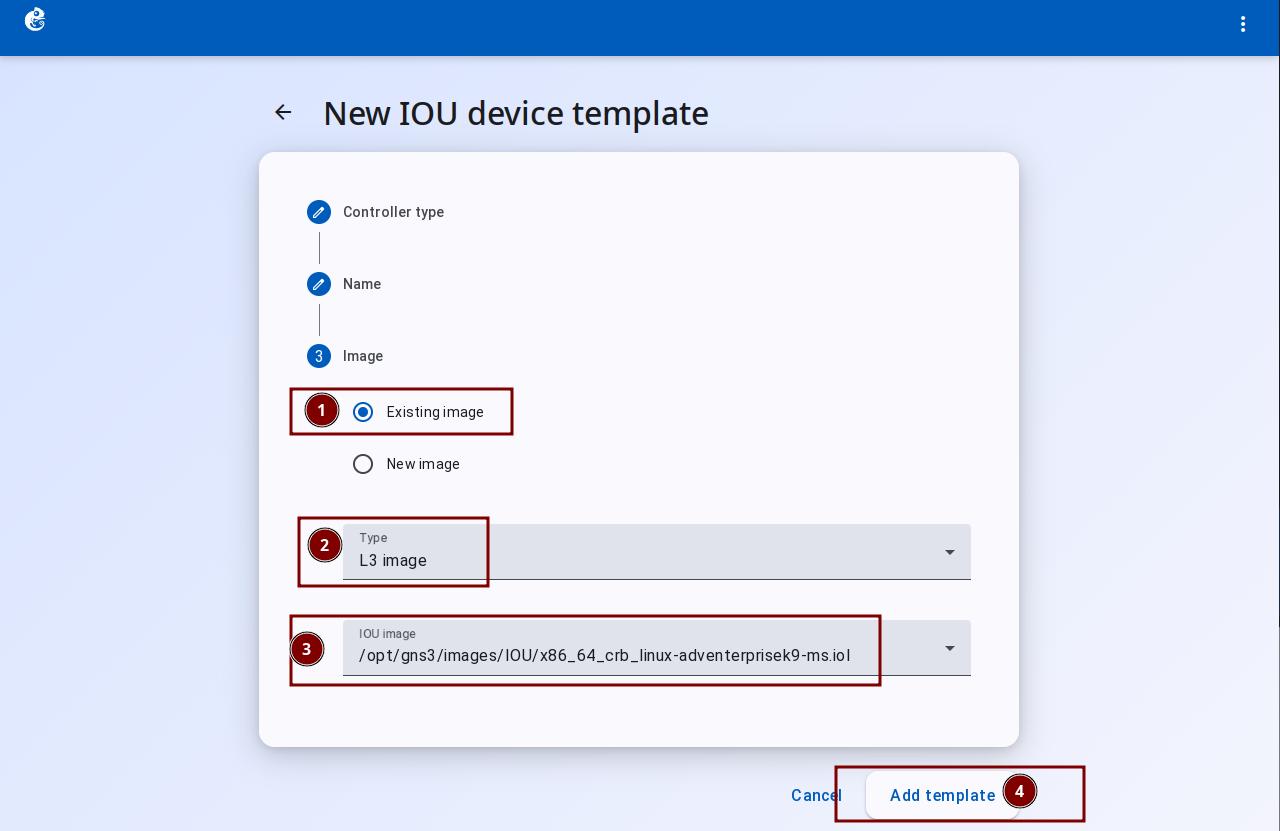
If you already have an uploaded image, choose "Existing Image". Select the Type and image file. Click "Add Template" to finish.
-
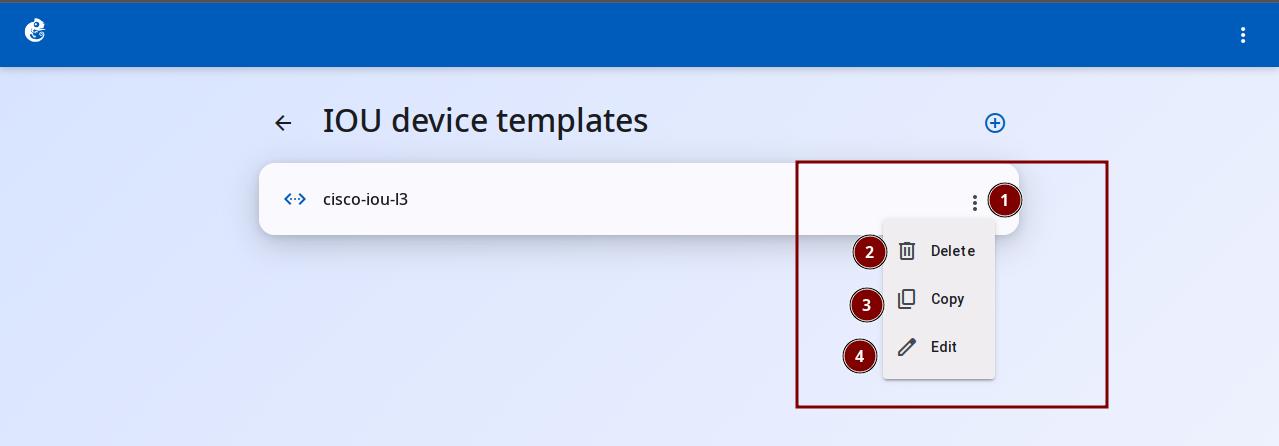
After creation, you can see the new template in the list. Click the three-dot button on the right to choose Delete, Copy, or Edit.
Main Differences from Dynamips
| Comparison | IOU | Dynamips |
|---|---|---|
| How it runs | Native Linux process (ELF executable) | Simulates the whole router hardware |
| Performance | High (close to real machine) | Low (needs Idle-PC to lower CPU) |
| Template | Single IOUTemplate, no platform sub-types | 7 platform sub-types |
| Adapters | Simple ethernet_adapters + serial_adapters numbers | Slots (slot0~6) + WIC, detailed configuration |
| Image format | .iol ELF binary | .bin IOS super image |
| Default icon | multilayer_switch | router |
| Name format | IOU{0} | R{0} |
| Application ID | Needs application_id (1-1024) | None |
| License | Needs iourc + hostid check | None |
| Suspend | Not supported | Supported |
| Configuration complexity | Needs to understand Slot architecture and PA types | Simpler, just two numbers |
IOU Template Configuration Details
General Settings
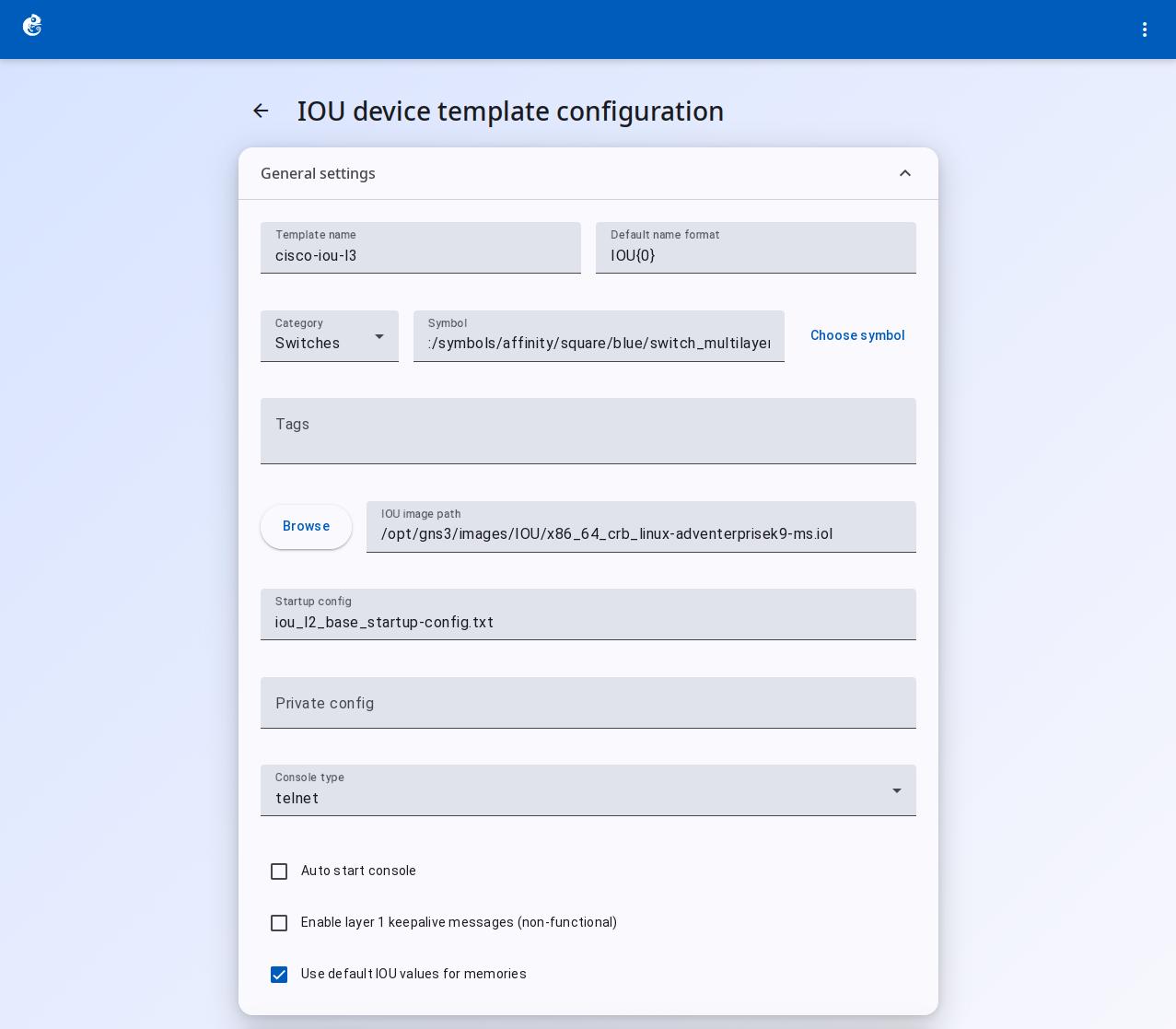
| Field | Type | Use |
|---|---|---|
| Template name | Text | Name of the template, shown in the list |
| Default name format | Text | Auto-naming format for instances, e.g. {name}-{0} |
| Category | Dropdown | Device category, decides grouping in the topology panel |
| Symbol | Text + button | Icon shown on the topology |
| Tags | Chip input | Tags for sorting/filtering |
| IOU image path | Text + Browse | Path to the IOU image file. Supports .iol / .bin / .image |
For example, on Cisco IOU devices, you need to add a device_type tag so that AI Copilot can recognize the device type, for example device_type:cisco_ios_telnet. Without the correct tag, AI Copilot cannot work with this device.
Configuration Fields
| Field | Type | Use |
|---|---|---|
| Startup config | Text | Startup configuration file (file name only) |
| Private config | Text | Private configuration file (file name only) |
| Console type | Dropdown | Console type: telnet / ssh / none |
| Auto start console | Checkbox | Automatically opens the console window when enabled |
| Enable layer 1 keepalive messages (non-functional) | Checkbox | L1 keepalive messages. Does not work in the current version |
| Use default IOU values for memories | Checkbox | When checked, hides RAM/NVRAM. Managed by IOU internally |
| RAM size | Number (MB) | Shows when default values are unchecked. Allocates memory size |
| NVRAM size | Number (KB) | Shows when default values are unchecked. Allocates NVRAM size |
Network
| Field | Type | Use |
|---|---|---|
| Ethernet adapters | Number | Number of Ethernet adapters. Each adapter gives 4 interfaces |
| Serial adapters | Number | Number of serial adapters |
Default values and interface allocation:
| Field | Default | Number of adapters | Interfaces per adapter | Total interfaces | Interface naming |
|---|---|---|---|---|---|
| ethernet_adapters | 2 | 2 | 4 | 8 | Ethernet0/0-3, Ethernet1/0-3 |
| serial_adapters | 2 | 2 | 4 | 8 | Serial0/0-3, Serial1/0-3 |