How to add a note
Add a Note is a tool for adding text annotations to the GNS3 network topology map. You can click anywhere on the map and enter text to record network design notes, node remarks, or other identifying information.
Quick Start
Activate the Tool
Click the pencil button on the left side of the project map toolbar (with the "create" pencil icon). The mouse cursor will change to a crosshair, indicating that text addition mode is active.
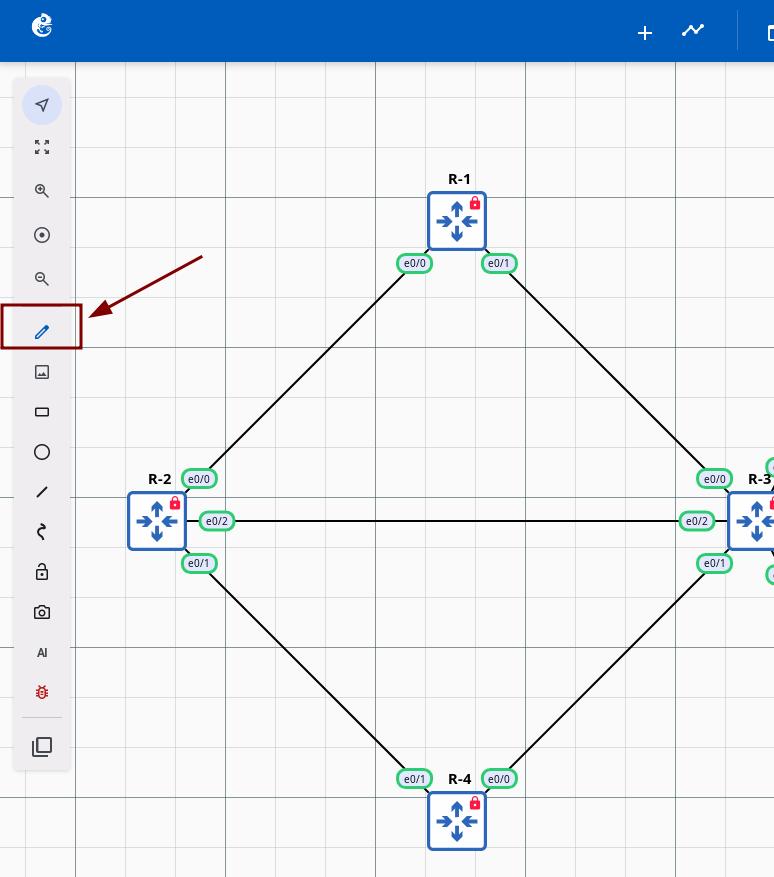
Choose a Location
Click the left mouse button at any position on the map. A temporary text input box will appear at the clicked location.
Enter Text
Type your text directly into the input box. The input box will auto-focus, so no additional click is needed.
Save the Text
Click elsewhere on the map or press the Tab key to remove focus from the input box. The text will be automatically saved and displayed as an SVG text element. The tool state will reset automatically, and the cursor will return to the default arrow.
Editing Notes (Text Editor Dialog)
To modify an existing note, double-click on the text element, or right-click and select Edit text.
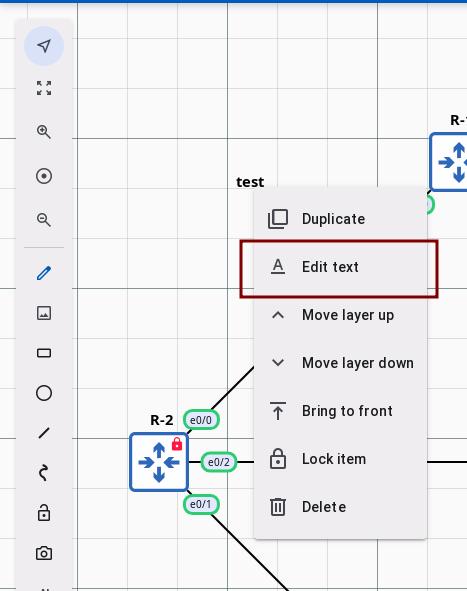
The Text Editor Dialog will open, allowing you to customize the following properties:
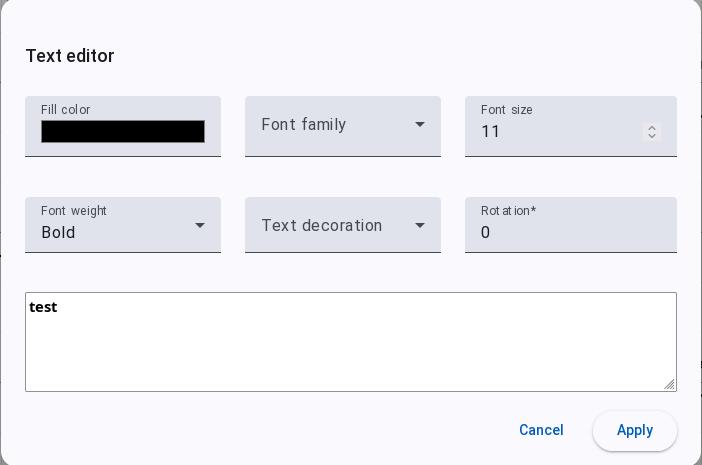
Text Content
A large text area for multi-line input with real-time style preview.
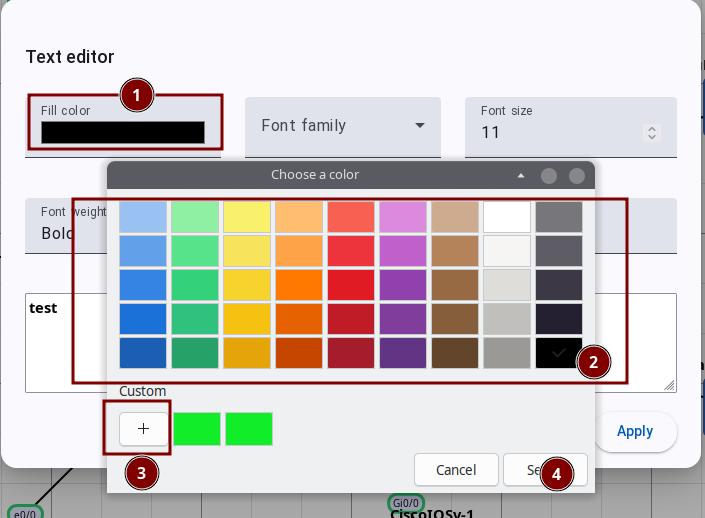
Fill Color
Use the color picker to set the text color. Click the Fill Color area to open the Choose a color dialog, where you can select from default colors or click "+" to set a custom color.
Font Family
8 font options: TypeWriter (Typewriter), Arial, Courier New, Times New Roman, Helvetica, Verdana, Georgia, Comic Sans MS
Font Size
Numeric input, range 1–200, step 0.5.
Font Weight
13 options: Normal, Bold, Lighter, Bolder, 100 (Thin), 200 (Extra Light), 300 (Light), 400 (Normal), 500 (Medium), 600 (Semi Bold), 700 (Bold), 800 (Extra Bold), 900 (Black)
Text Decoration
4 options: None, Underline, Line Through, Overline.
Rotation
Text input box for entering the rotation angle (validated).
Dialog Buttons
- Cancel — Discard changes and close the dialog.
- Apply — Save changes and close the dialog.
Features
- Free Positioning: Text can be placed at any location on the map without grid restrictions.
- Instant Feedback: The input box appears immediately at the click position — what you see is what you get.
- Auto Save: When focus is lost, the text is automatically saved to the server without manual confirmation.
- Editable: Existing text can be edited again by double-clicking on it.
- Zoom Synchronization: Text scales with the map zoom level to maintain readability.
Coordinate System
This feature uses the GNS3 canvas coordinate system, which automatically handles map zoom and pan offsets to ensure text is accurately positioned at the user's click location.
State Management
Once the tool is activated, clicking the toolbar button again will cancel text addition mode and restore the normal cursor. After adding a note, the tool will also automatically exit. You need to click the button again to add additional text.