How to insert a picture
"Insert a picture" allows you to upload and insert image files onto the GNS3 network topology map, enabling you to add legends, logos, or other visual elements.
Quick Start
Click the Button
Click the "image" icon button on the project map toolbar (tooltip: "Insert a picture"). This triggers the file selection dialog.
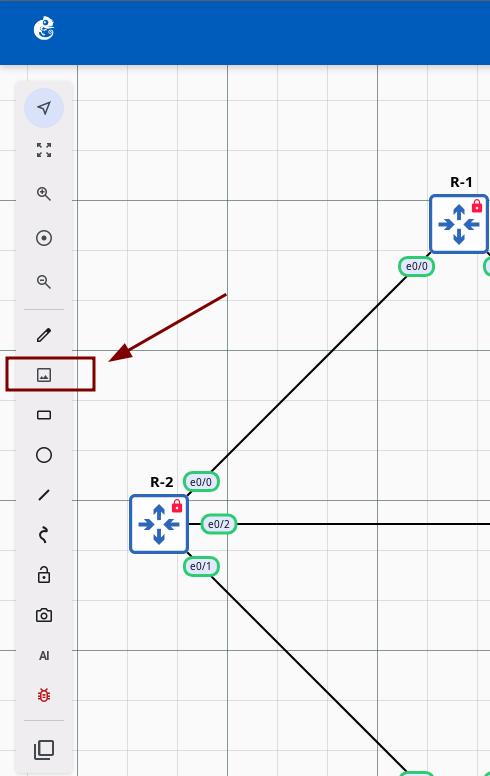
Select an Image File
The system opens a file picker. Supported formats: BMP, JPEG, JPG, GIF, PNG. SVG files are not supported and will display an error message.
Automatic Processing and Insertion
The system automatically reads the file, retrieves the image dimensions (width and height), converts the image to SVG format, calculates the center position (image center aligned to the coordinate origin), and uploads it to the server for display on the map.
Resizing inserted images on the topology is currently not supported.
- SVG — displays error: "SVG images are not supported. Please use PNG, JPG, GIF or BMP format."