How to draw a curve
Draw a Curve allows you to draw smooth curves on the GNS3 network topology map for creating curved paths or connection markers.
Quick Start
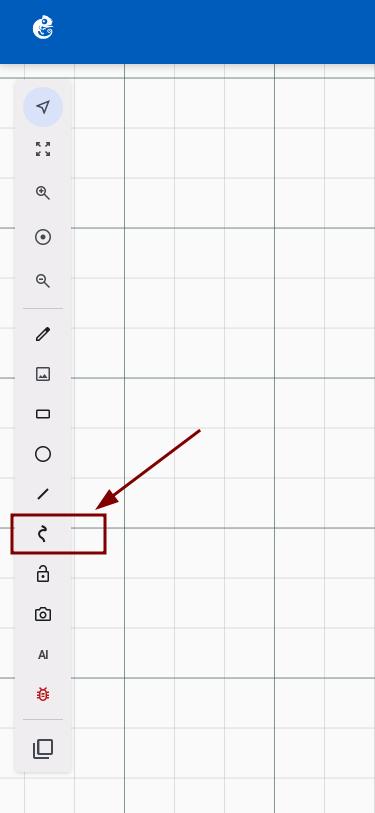
Activate the Tool
Click the curve icon button on the toolbar (tooltip: "Draw a curve"). The mouse cursor will change to a crosshair.
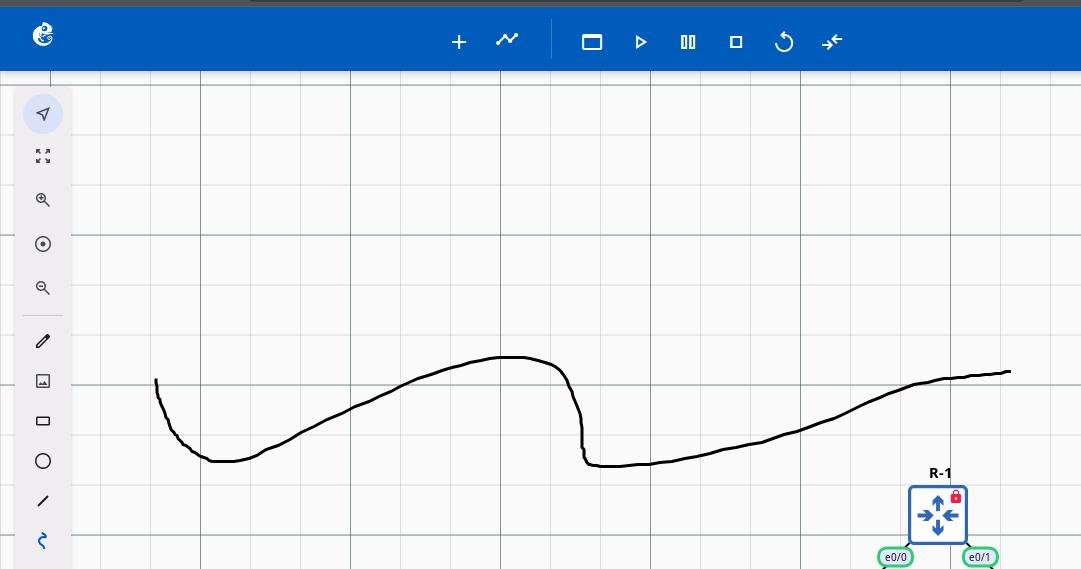
Drag to Draw
Press and hold the mouse button on the map and drag to create a curve path. Release the mouse button to complete the drawing. The curve is automatically saved to the server.
Style Editor
Right-click on the curve and select Edit style to open the Style editor dialog.
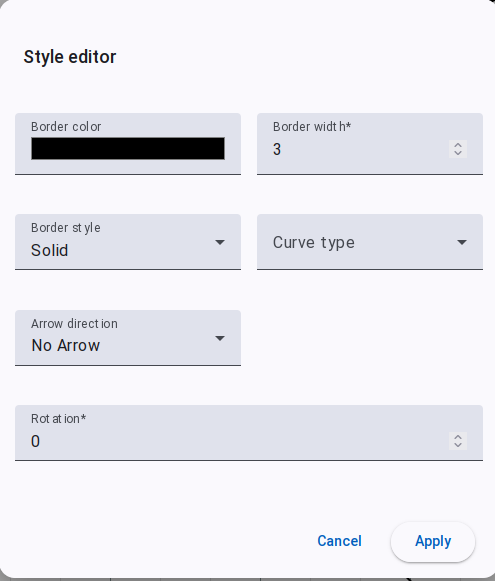
- Border Color — Color picker
- Border Width — Numeric input (range: 0–100)
- Border Style — 6 options: Solid, Dash, Dot, Dash Dot, Dash Dot Dot, No border
- Curve Type — 3 options:
- Catmull-Rom (Smooth, default) — Smooth curve passing through all points
- Basis (B-spline) — Smoother but may not pass through all points
- Monotone — Monotonic curve to avoid oscillation
- Arrow Direction — 4 options: No Arrow, End Arrow, Start Arrow, Both Arrows
- Rotation — Numeric input for rotation angle
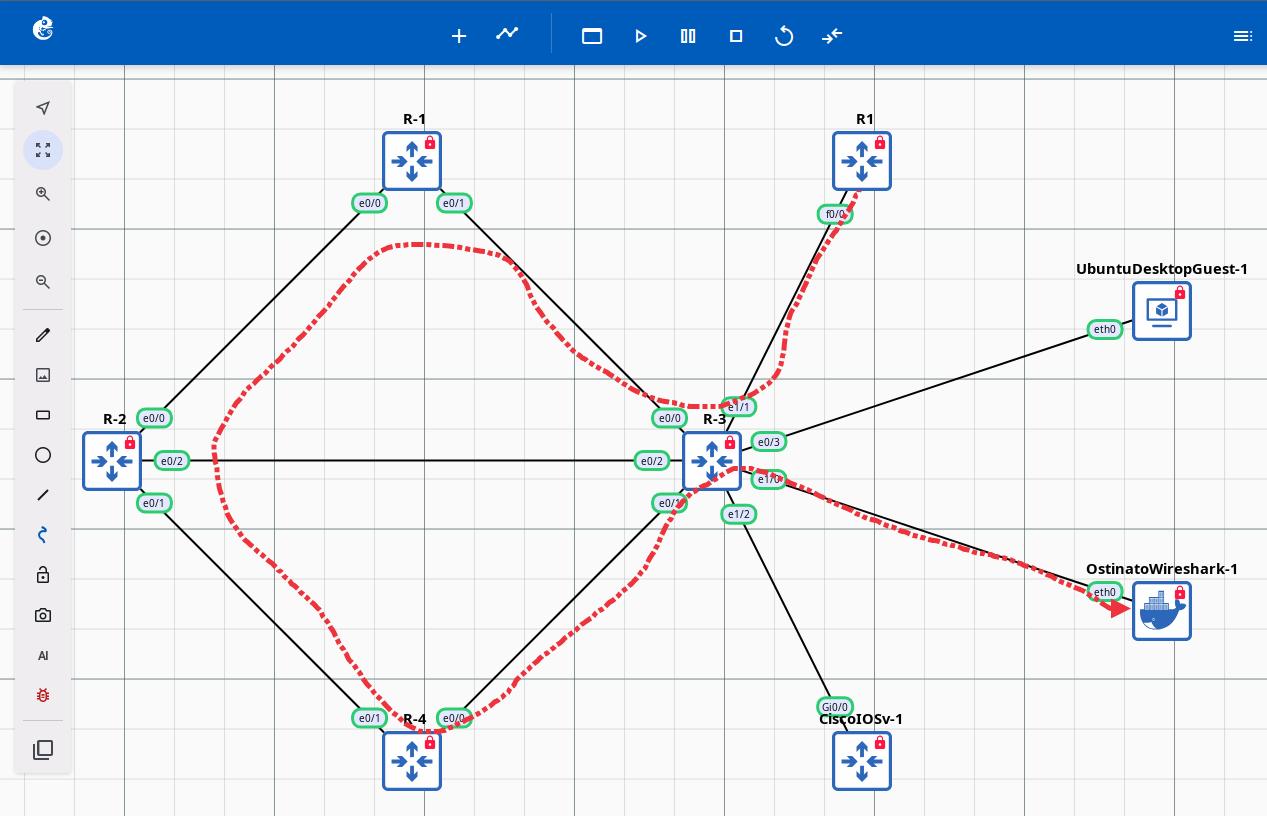
Curve Example
Dialog Buttons
- Cancel — Discard changes
- Apply — Save changes
Comparison with Other Drawing Tools
| Feature | Rectangle / Ellipse / Line | Curve |
|---|---|---|
| Drawing method | Click to create | Drag to create |
| Tool state | Stays active | Auto exits |
| Creation path | Single point | Multi-point path |
| Curve type | N/A | 3 options |