How to use Web VNC
Web VNC lets you access VNC-type devices (like QEMU virtual machines, Docker, and other emulated devices with a desktop) directly in your browser. You do not need to install VNC client software.
Quick Start
Open Web VNC
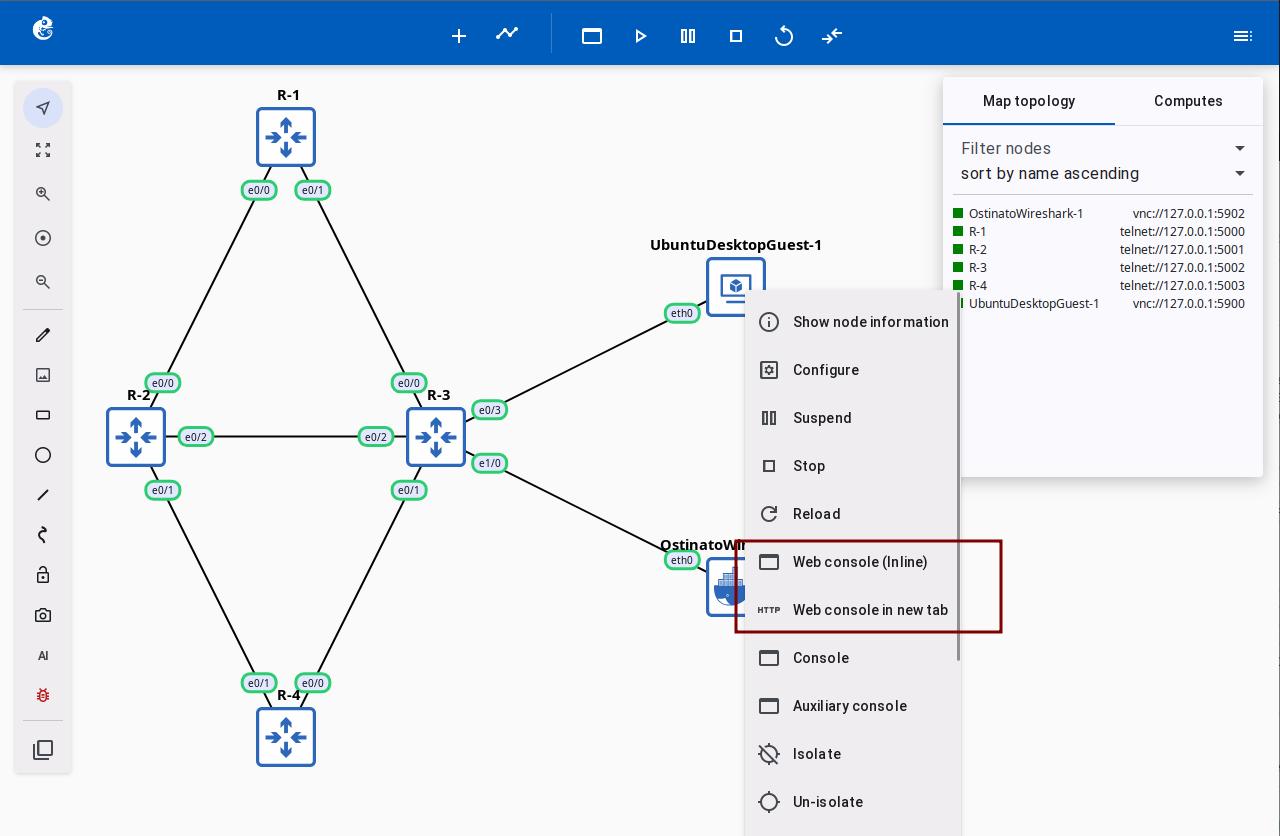
Right-click on a VNC-supported node and select "Web console(inline)" to open an inline Web VNC window. Or select "Web console in new tab" to open it in a new browser tab.
The Web console(inline) window opens in the topology interface. You can drag, resize, move, or minimize it.
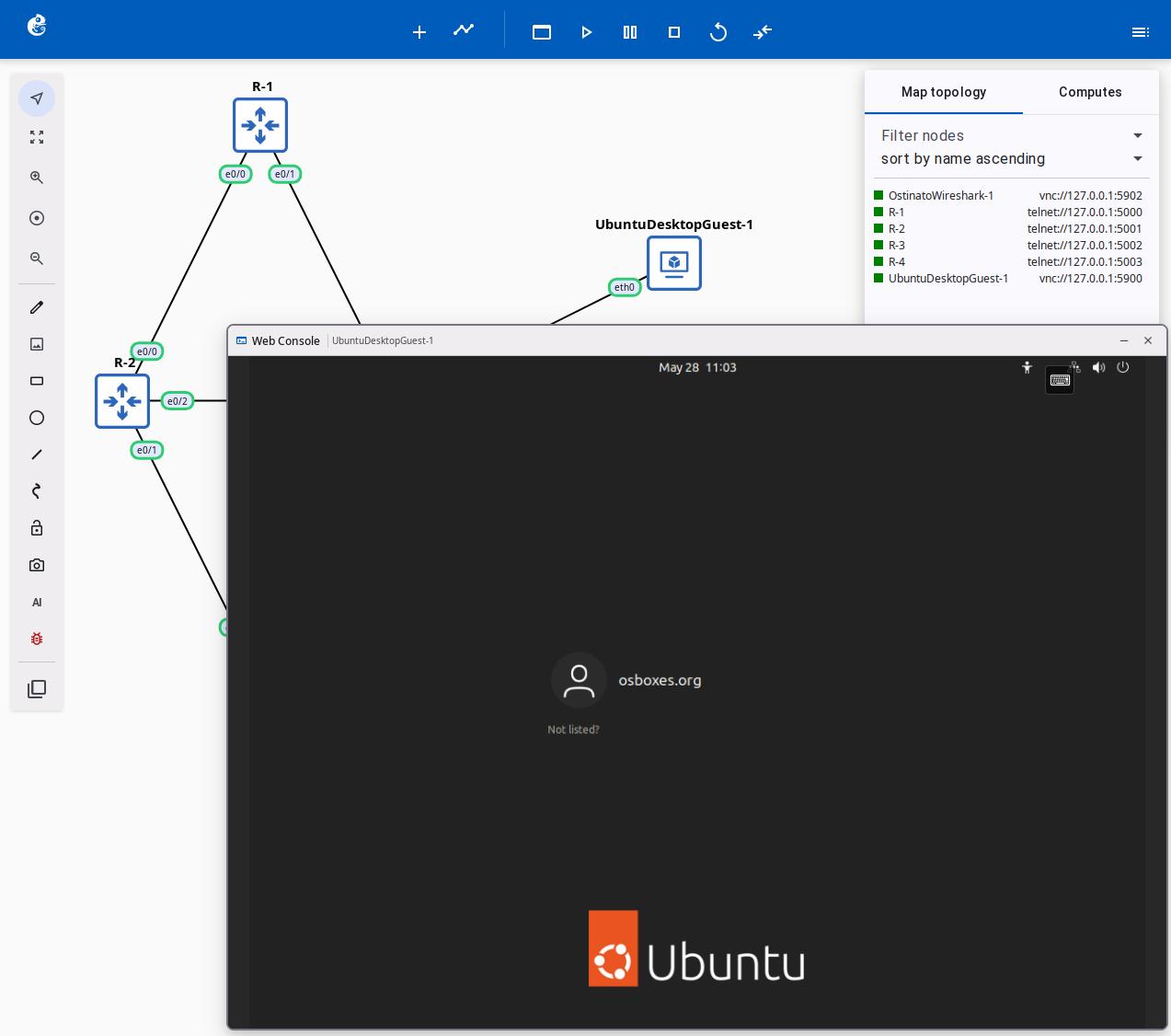
Window limits:
- Minimum size: 500×400px
- Maximum size: No hard limit
Features
Connection Management
Auto-connect:
- When you open a VNC console, it connects to the device automatically
- There is a 15-second connection timeout for protection
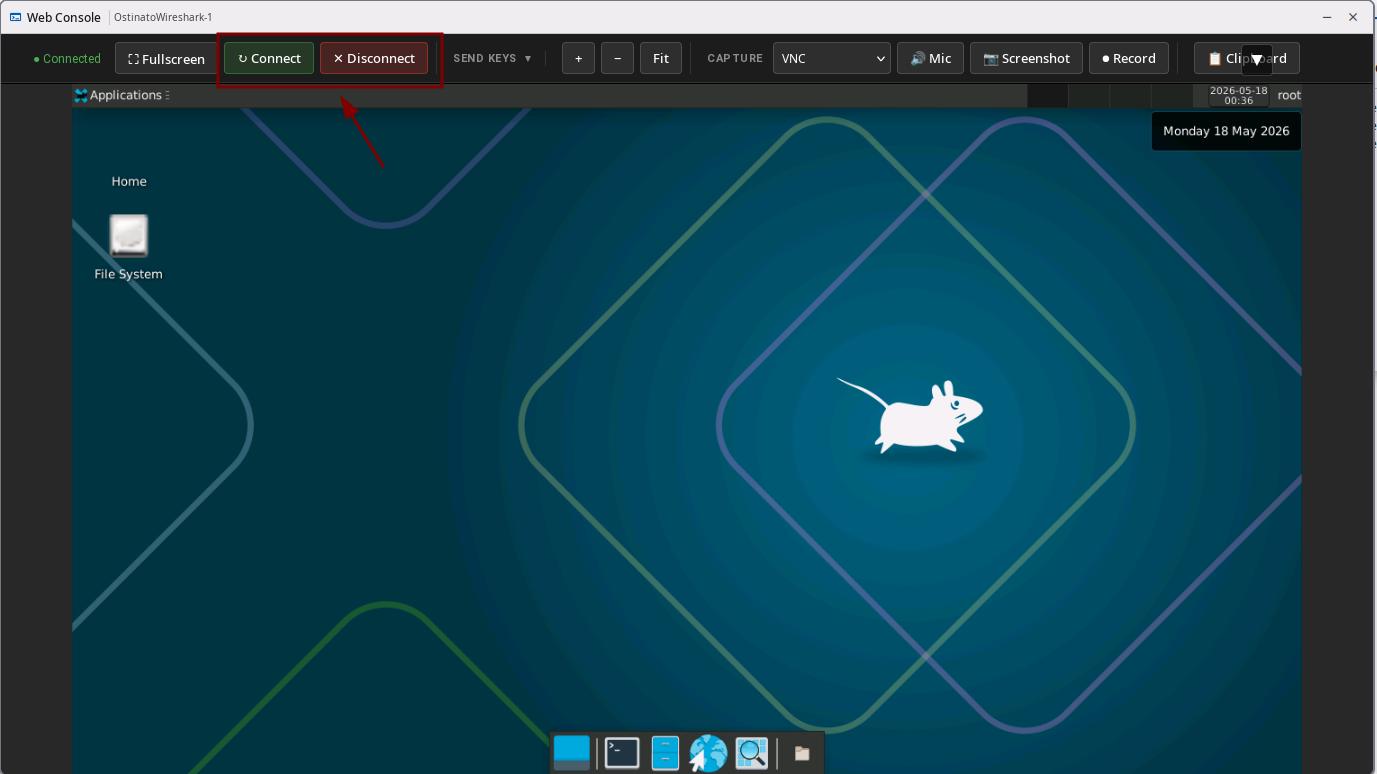
Connection states:
- Connecting
- Connected
- Disconnected
Screen Control
Zoom features:
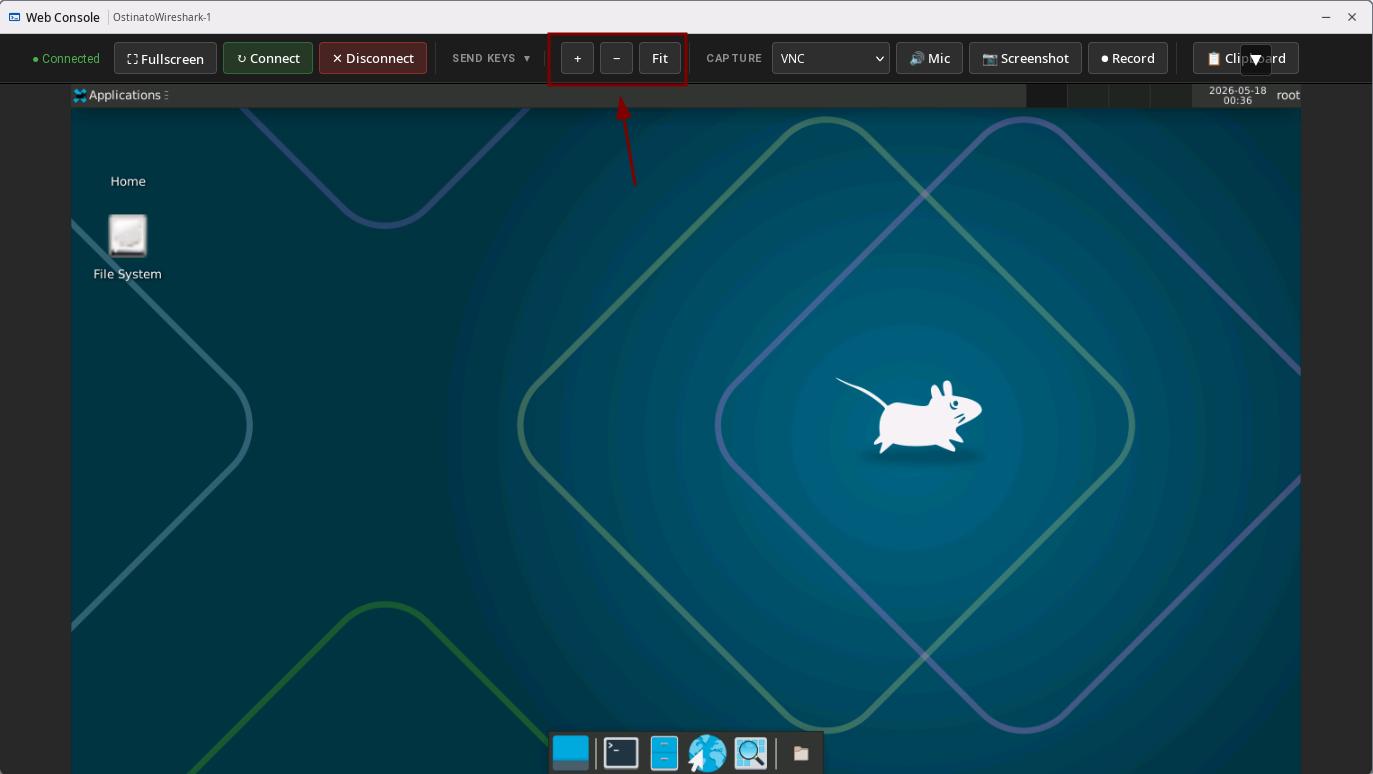
| Action | Description |
|---|---|
| Zoom in | Make the display bigger |
| Zoom out | Make the display smaller |
| Fit to window | Adjust automatically to fill the window |
Fullscreen mode:
- Press F11 or click the fullscreen button to enter or exit fullscreen
- Hides the browser frame for a full-screen experience
Send Keys
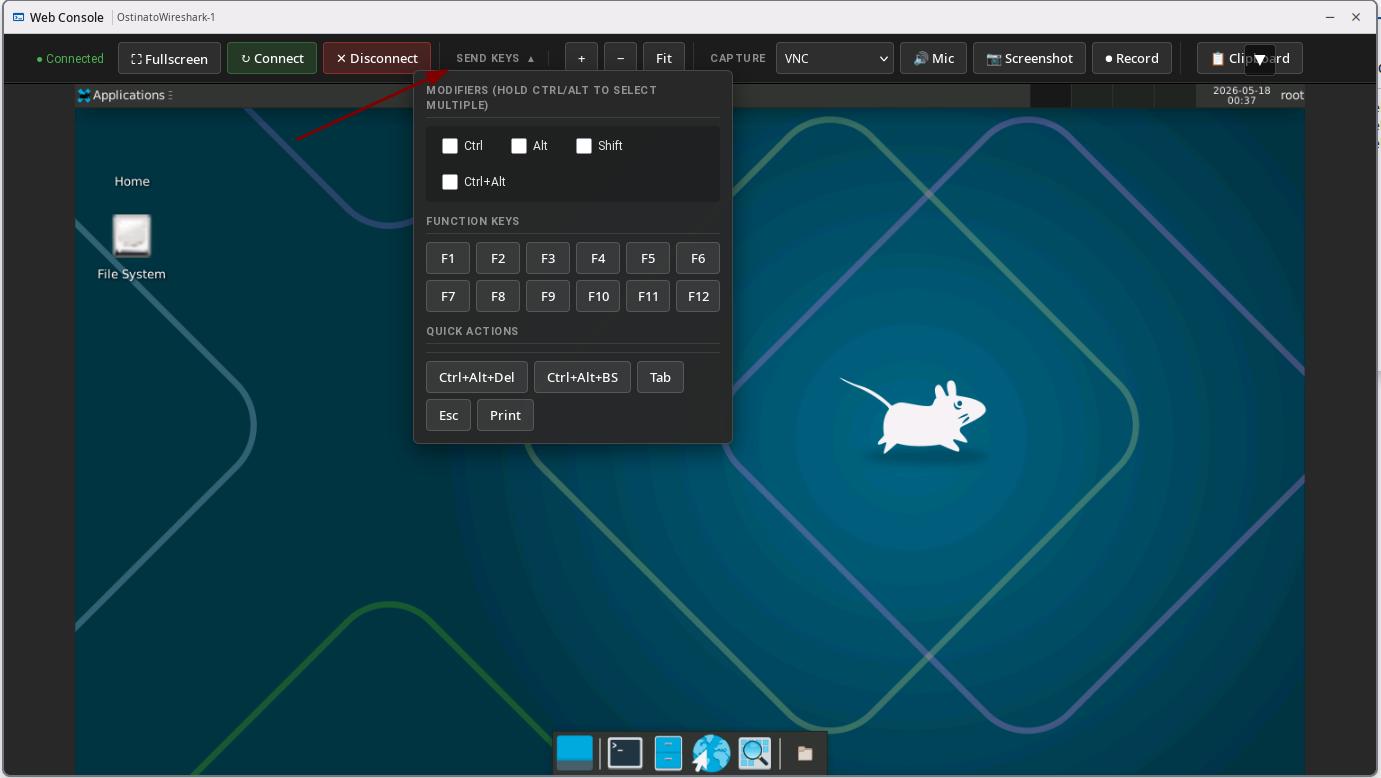
Send special key combinations to the device (to avoid conflicts in the browser):
| Key | Function |
|---|---|
| Ctrl+Alt+Del | Send Ctrl+Alt+Del |
| Ctrl+Alt+Backspace | Send Ctrl+Alt+Backspace |
| F1 to F12 | Send function keys |
| Tab | Send Tab key |
| Esc | Send Esc key |
| Print Screen | Send Print Screen key |
Combination keys are supported, for example Ctrl+Shift+F1.
Screenshot
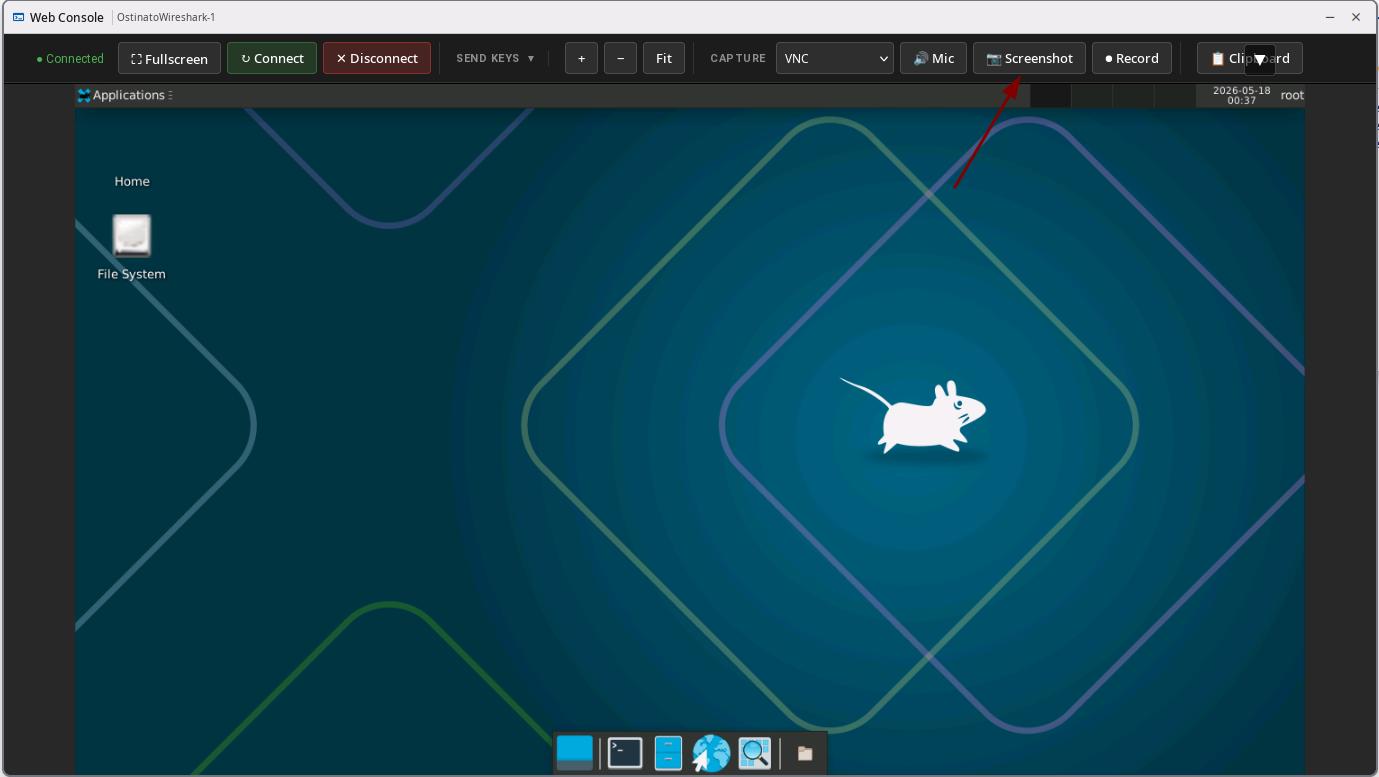
- Click the screenshot button
- The screenshot is automatically downloaded as a PNG file
- Captures the current VNC screen content
Screen Recording
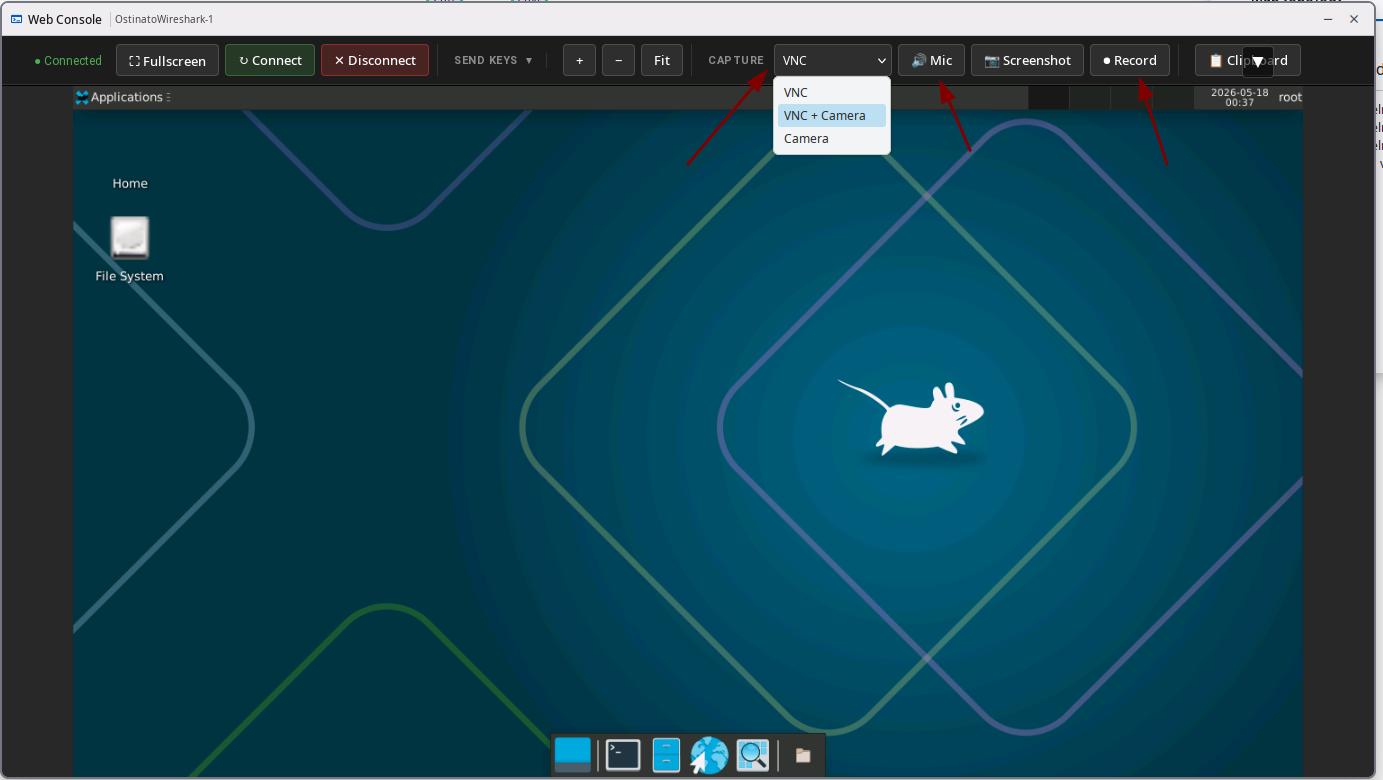
Recording modes:
| Mode | Description |
|---|---|
| VNC | Record only the VNC screen |
| VNC+Camera | VNC screen with camera picture-in-picture (bottom-right corner) |
| Camera | Record only the camera |
Recording features:
- Format: WebM
- Pause/Resume: You can pause the recording at any time
- Audio recording: Supports microphone recording (can be muted)
- Visual effects:
- Timestamp overlay
- Mouse cursor display
- Click ripple animation
- GNS3 watermark (invisible digital watermark)
Recording behavior:
- If VNC disconnects, the recording continues (may show a black screen)
- Paused time does not count toward the recording duration
Clipboard Sync
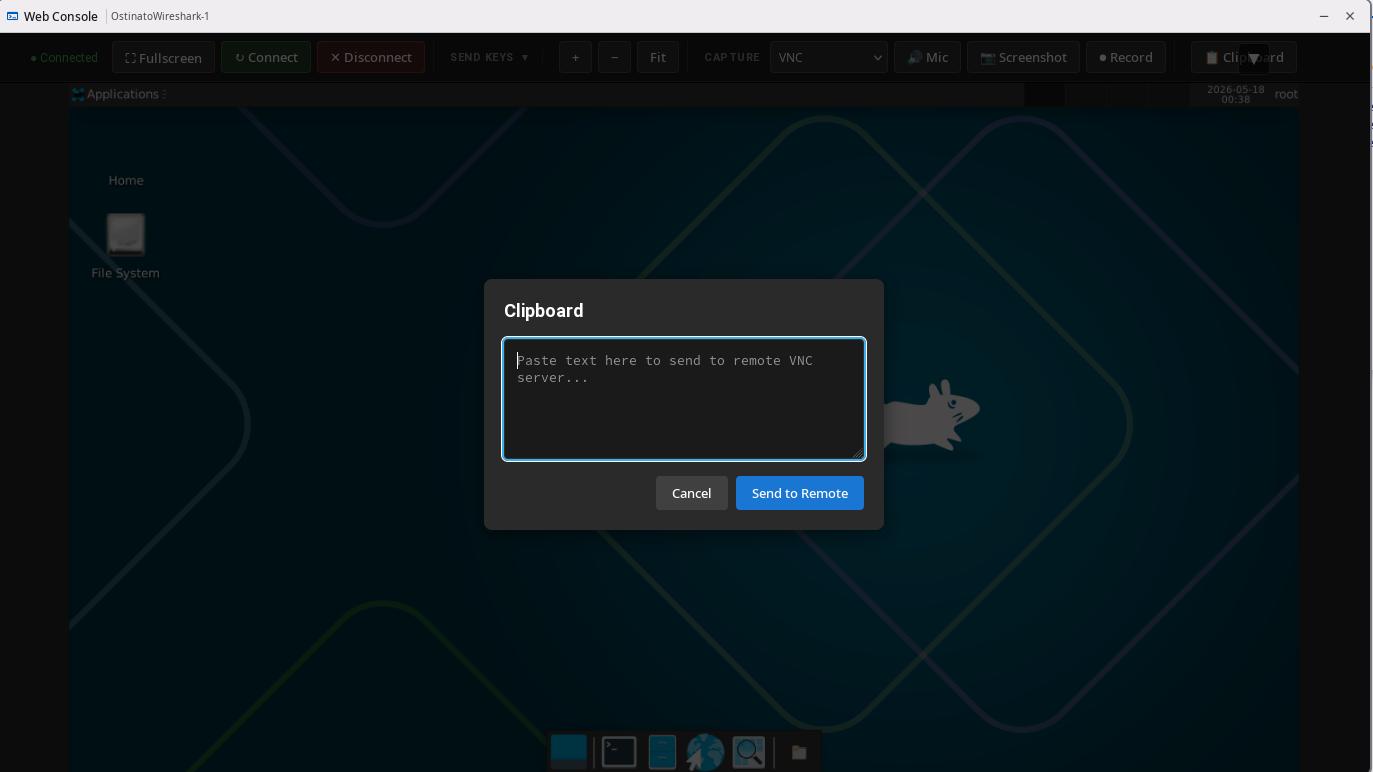
Send clipboard:
- Paste local text into the VNC device
VNC Clipboard Support by Platform
| Platform | Clipboard Support | How It Works |
|---|---|---|
| Docker | Full support | TigerVNC + vncconfig |
| QEMU | Partial support | QEMU built-in VNC, depends on guest system |
Comparison with Traditional VNC Clients
| Feature | Web VNC | Traditional VNC Client |
|---|---|---|
| Installation | No installation needed | Needs VNC Viewer |
| Cross-platform | Any modern browser | Depends on operating system |
| Recording | Built-in recording | Needs extra software |
| Screenshot | One-click screenshot | Needs extra steps |
| Camera | Supports picture-in-picture | Not supported |
Feature Contributor
Web VNC feature was developed and contributed by YueGuobin.
- LinkedIn: Guobin Yue