How to lock or unlock all items
Lock/Unlock Items and Show Lock Status work together to manage the lock state of nodes and drawing elements on the GNS3 topology map, and provide visual lock status indicators.
Lock or Unlock All Items
Click the Lock Button
Click the lock/unlock icon on the toolbar (tooltip: "Lock or unlock all items"). The icon changes based on the current state:
- 🔓
lock_openicon: currently unlocked - 🔒
lockicon: currently locked (highlighted)
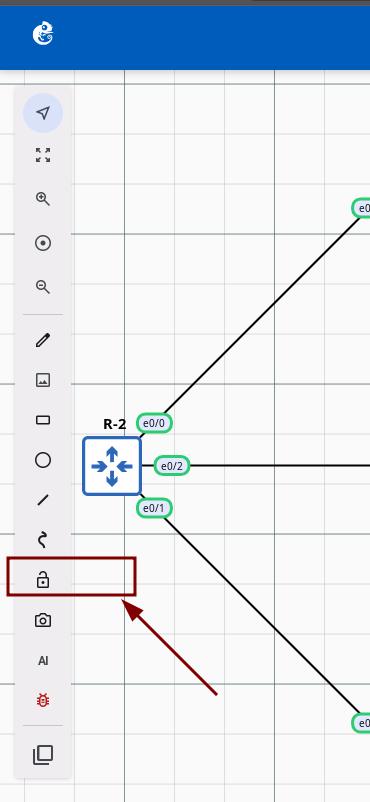
Confirm Dialog
A confirmation dialog will appear:
- Title: "Confirm Lock All" or "Confirm Unlock All"
- Message: "Are you sure you want to Lock/Unlock all devices?"
- Buttons: No (cancel) / Yes (confirm, default focus)

Execute
Click Yes to execute. All node and drawing element states will be updated, and the button icon will change accordingly.
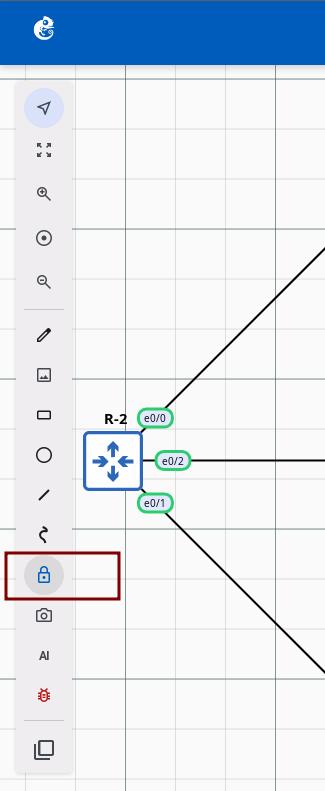
Effect When Locked
Disabled operations:
- ❌ Cannot move nodes
- ❌ Cannot edit drawings (rectangles, ellipses, lines, curves, text)
- ❌ Cannot delete nodes or drawings
- ❌ Cannot resize nodes
Allowed operations:
- ✅ View project content
- ✅ Use non-editing features (screenshot, AI assistant, etc.)
- ✅ Connect to node consoles
Show Item Lock Status
Location
Go to the Map Settings menu in the top-right corner of the project map. Toggle the Show item lock status checkbox. It is disabled by default.
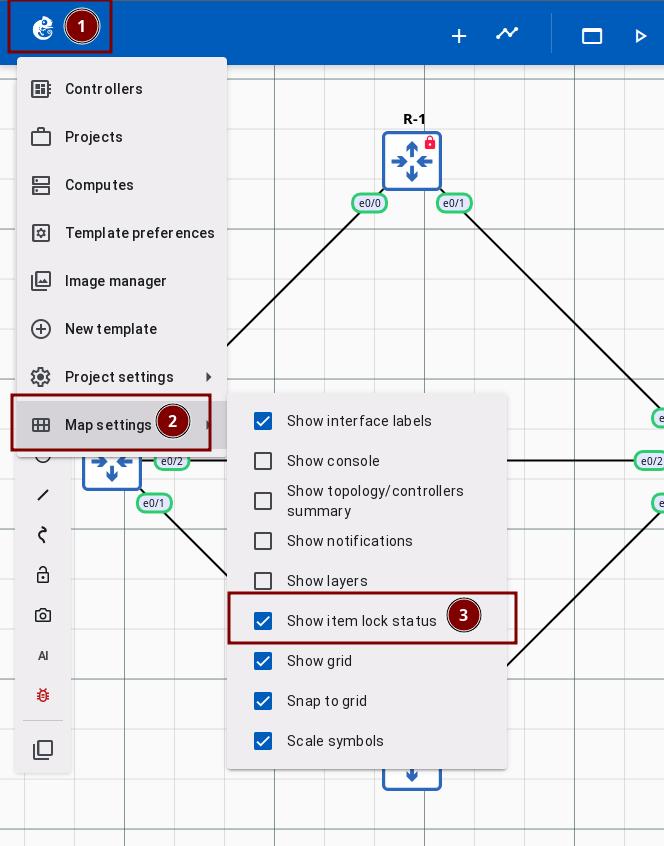
Effect When Enabled
- Lock status badge 🔒 (red locked) / 🔓 (green unlocked) is displayed on the top-right corner of nodes
- Drawing elements (rectangles, ellipses, images) show lock status badges on the top-right corner
- Each item's lock status is clearly visible
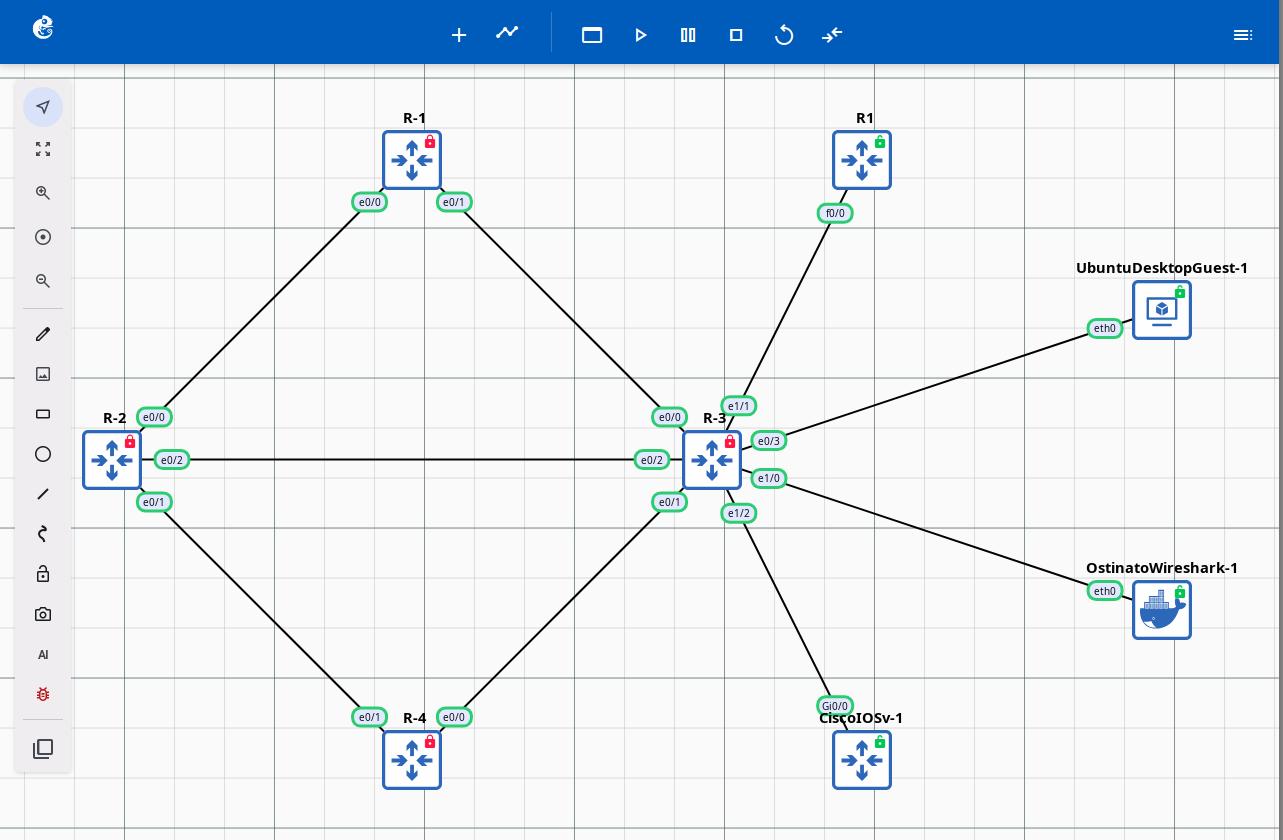
Which elements show badges:
- ✅ All nodes
- ✅ Rectangle drawings
- ✅ Ellipse drawings
- ✅ Image drawings
- ❌ Lines / curves / text / links (no badge shown)
Technical Notes
- Lock state is stored on the server (each node/drawing has a
lockedproperty) - Display state is stored in localStorage per project
- Lock state syncs to the server and is visible to all users
- Display state only affects local view, not the actual lock state