How to draw a shape
Draw a Rectangle and Draw an Ellipse allow you to create shapes on the GNS3 network topology map for area identification, grouping boundaries, or visual separation.
Draw a Rectangle(绘制矩形)
Activate the Tool
Click the rectangle icon button on the toolbar (tooltip: "Draw a rectangle"). The mouse cursor will change to a crosshair, indicating that rectangle drawing mode is active.
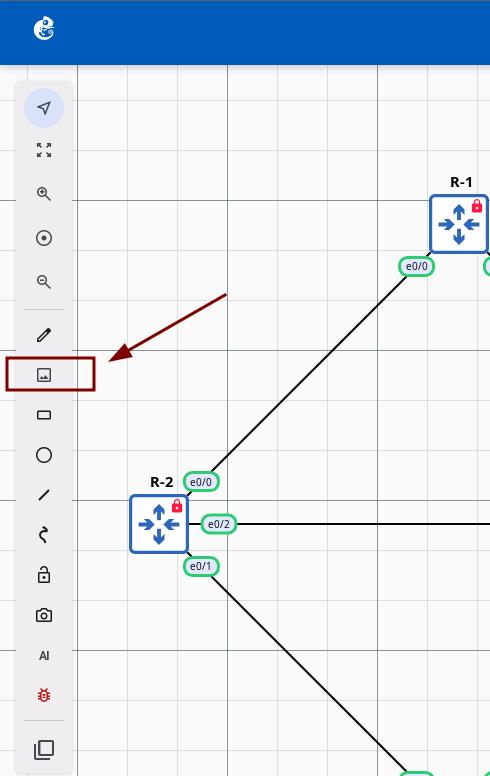
Click on the Map
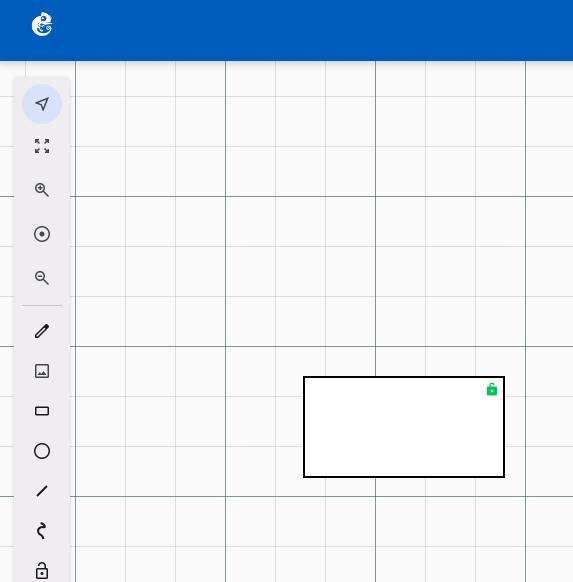
Click at the desired position on the map. The rectangle will be automatically created and displayed at the click location, and automatically saved to the server.
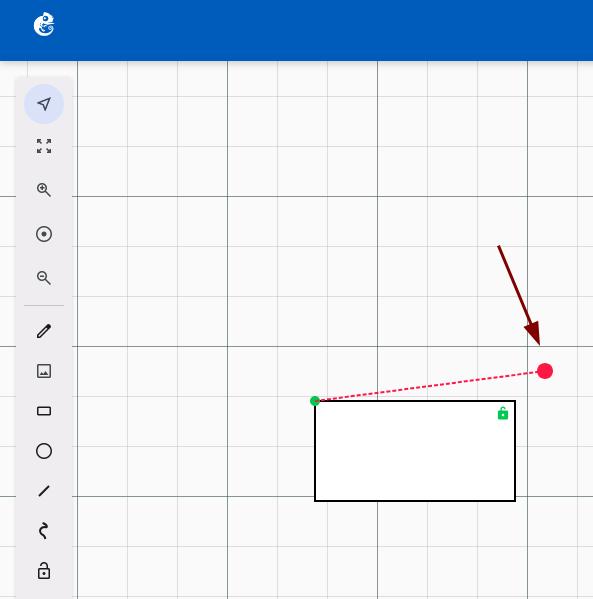
When selected, drag the red dot to rotate the rectangle.
Right-click on the rectangle and select Edit style to open the Style editor dialog.
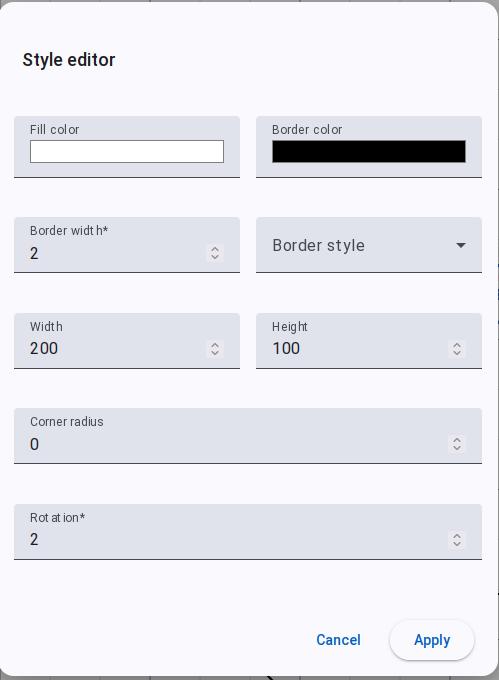
You can configure Fill Color, Border Color, Border Width, Border Style, Width, Height, Rotation, and Corner Radius.
Draw an Ellipse(绘制椭圆)
Activate the Tool
Click the circle icon button on the toolbar (tooltip: "Draw an ellipse"). The mouse cursor will change to a crosshair, indicating that ellipse drawing mode is active.
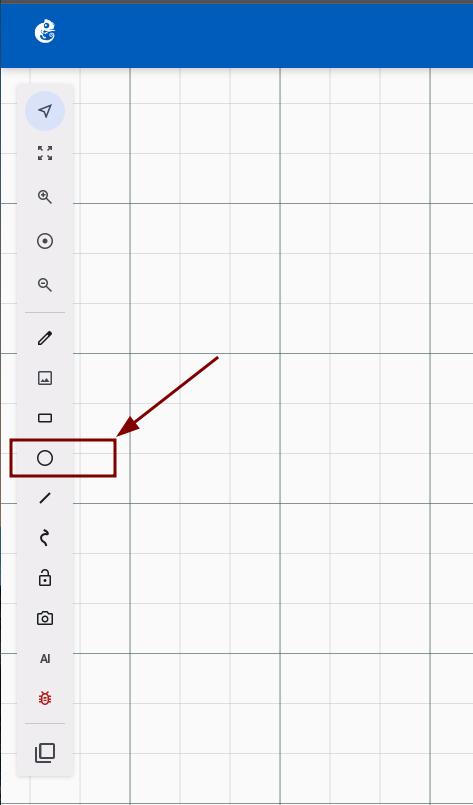
Click on the Map
Click at the desired position on the map. The ellipse will be automatically created and displayed at the click location, and automatically saved to the server.
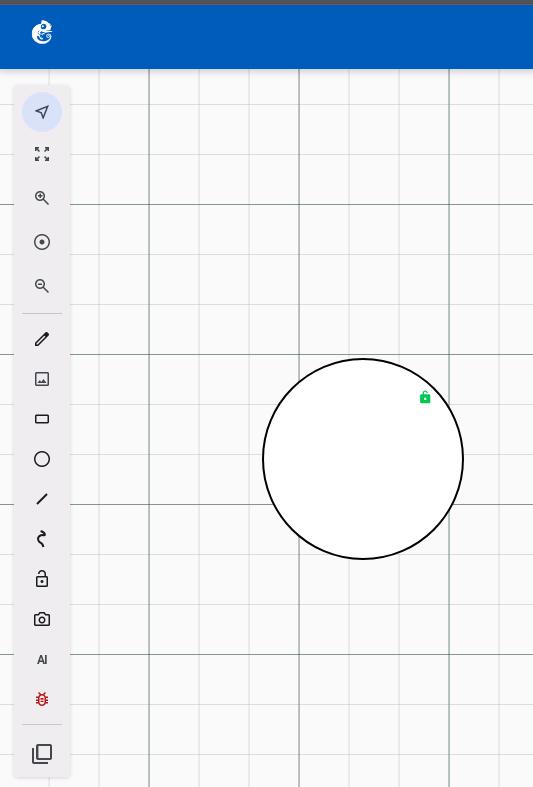
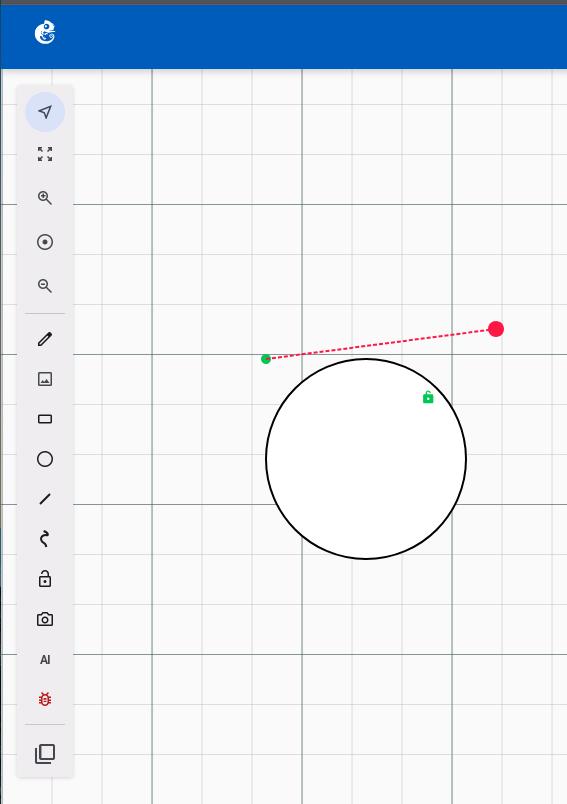
When selected, drag the red dot to rotate the ellipse.
Right-click on the ellipse and select Edit style to open the Style editor dialog.
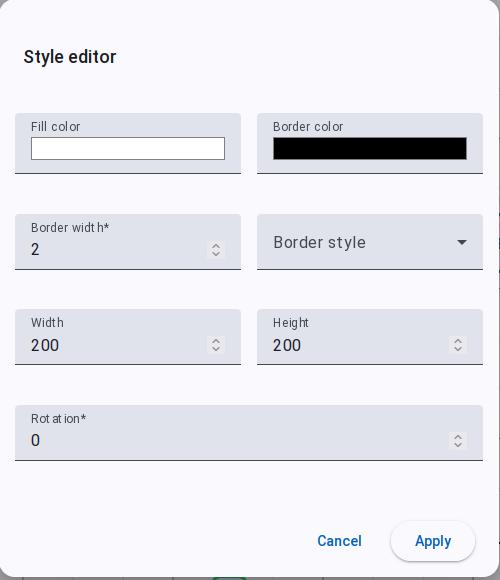
You can configure Fill Color, Border Color, Border Width, Border Style, Width, Height, and Rotation.