How to edit a project
Edit Project Dialog allows you to configure project properties, documentation, and global variables through three tabbed sections.
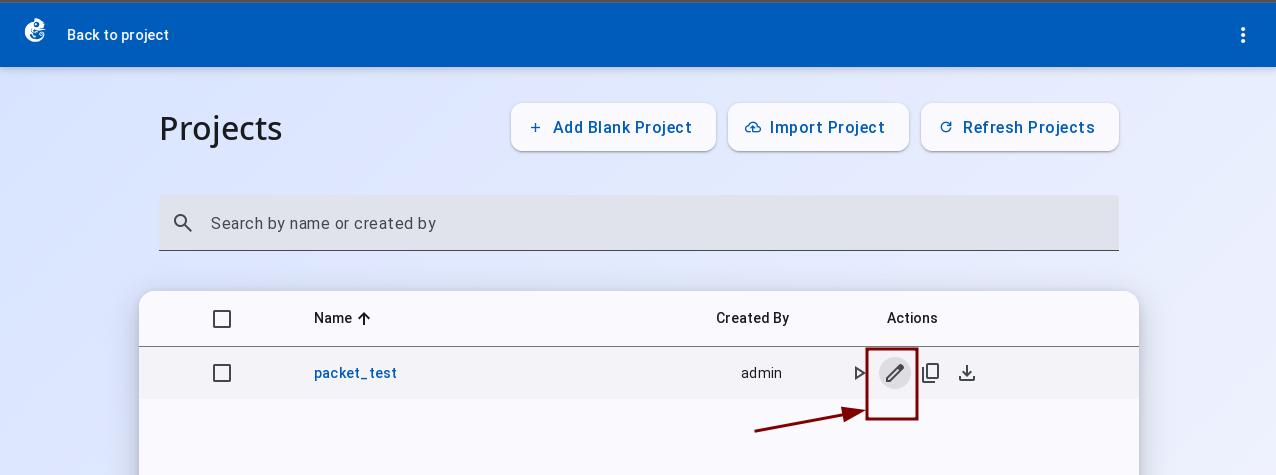
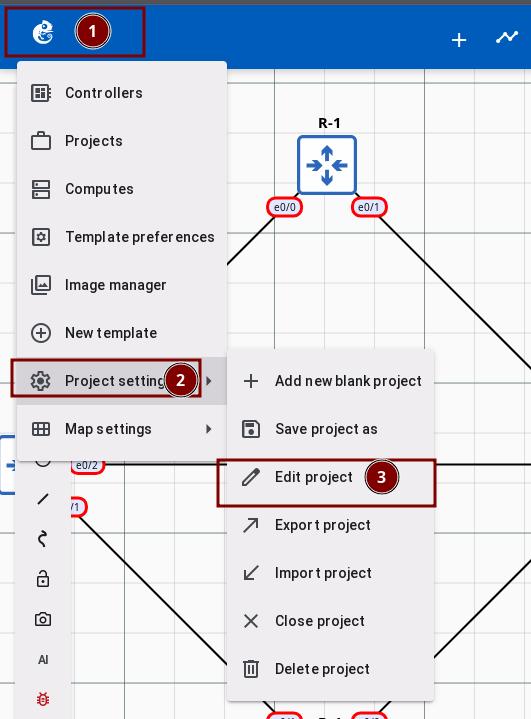
You can open the Edit Project Dialog from two locations:
-
Project list page — Click the edit button.
-
Topology page — Click the top-left logo → Project Settings → Edit Project.
General
Configure basic project information and canvas dimensions.
Project name — Text input, full width, required.
Scene dimensions — Scene width and height (in pixels).
Grid sizes — Node grid size and Drawing grid size for alignment.
Checkbox options:
- Open this project in the background when GNS3 controller starts
- Start all nodes when this project is opened
- Leave this project running in the background after closing
- Show interface labels at start
Readme
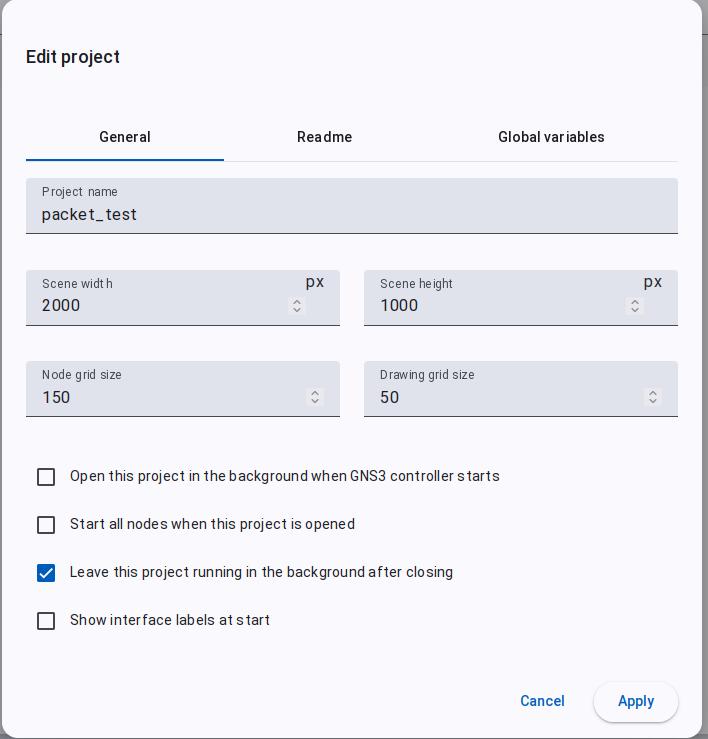
Markdown editor with live preview for project documentation.
-
Click the Edit button to enter edit mode.
-
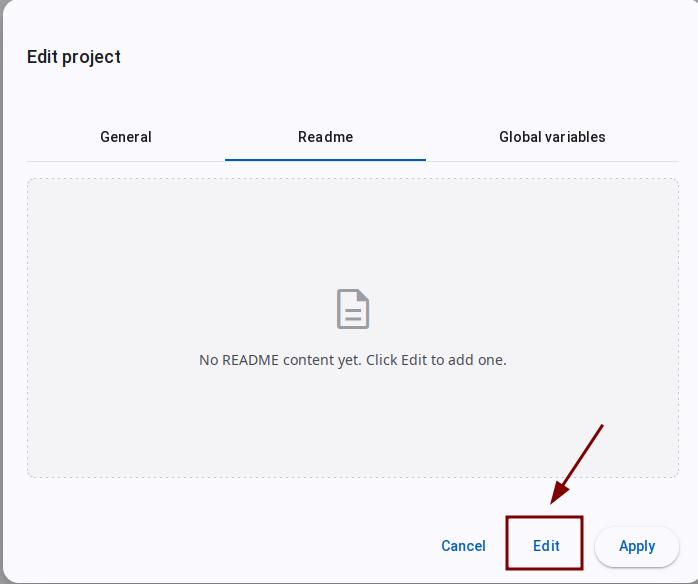
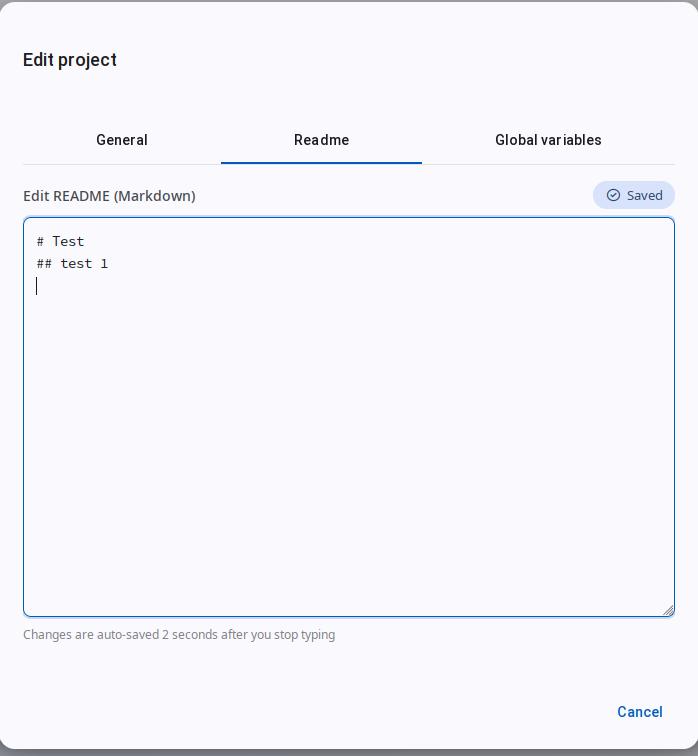
In edit mode, you can enter Markdown or plain text. Mermaid rendering is not supported. Content auto-saves after 2 seconds of inactivity.
Global Variables
Manage project-level variables, primarily used for Docker container environment variable template substitution.
Add variable: Enter Name and Value, click Add variable.
Variable list: Table with Name, Value, and Actions (delete) columns.
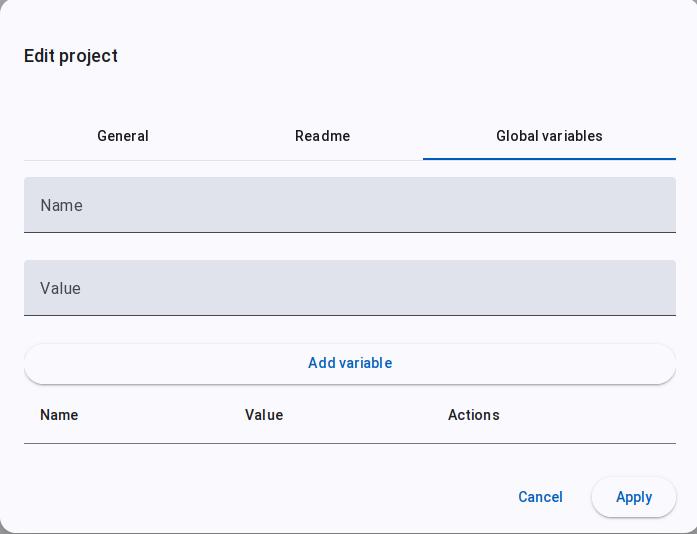
Project Global variables are automatically set as Docker container environment variables. After adding, deleting, or modifying variables, the containers will be automatically rebuilt to apply the changes.
Use Cases
- Environment reuse: Use different variable values across dev/test/production environments
- IP address management: Define common IP variables and reuse across multiple containers
- Centralized configuration: Avoid repeating the same values across multiple Docker containers
- Dynamic configuration: Modify variable values to affect all containers that use them
- Project templates: Create reusable topology templates with portable variable configurations
Currently only Docker containers support variable substitution. Other VM types (QEMU, VirtualBox, etc.) do not support project variables.
Usage Example: Unified Docker Container Environment Variables
A project has 3 Alpine Linux Docker containers that need the following environment variables:
| Variable | Value | Purpose |
|---|---|---|
TZ | Asia/Shanghai | Set container timezone |
LANG | en_US.UTF-8 | Set container language |
APP_ENV | development | Identify running environment |
DEBUG_LEVEL | verbose | Control log verbosity |
-
Add these variables one by one in the Edit Project dialog's Global variables tab.
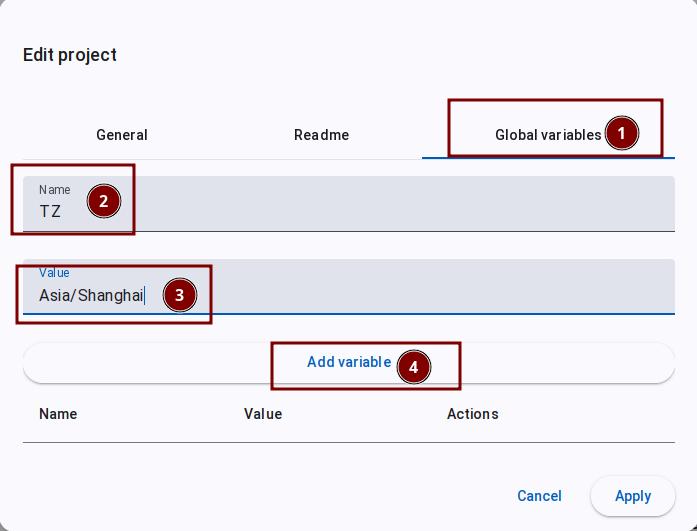
-
After adding, click the Apply button.
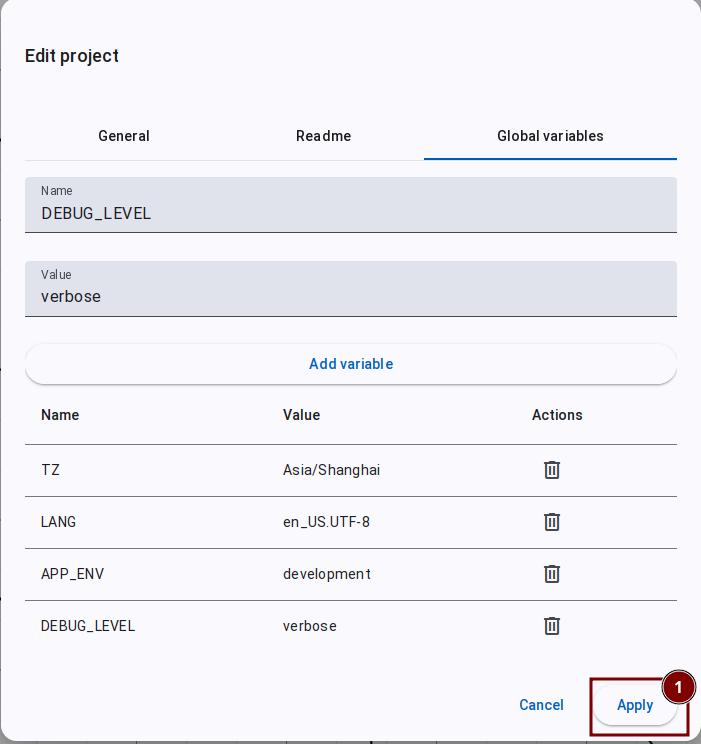
-
A confirmation dialog appears with the following message:
Adding or deleting project global variables will cause the GNS3 server
  to rebuild docker containers in the project to apply the new variables.
  If containers are running, this operation may take approximately 5-10 seconds.
  Do you want to continue?
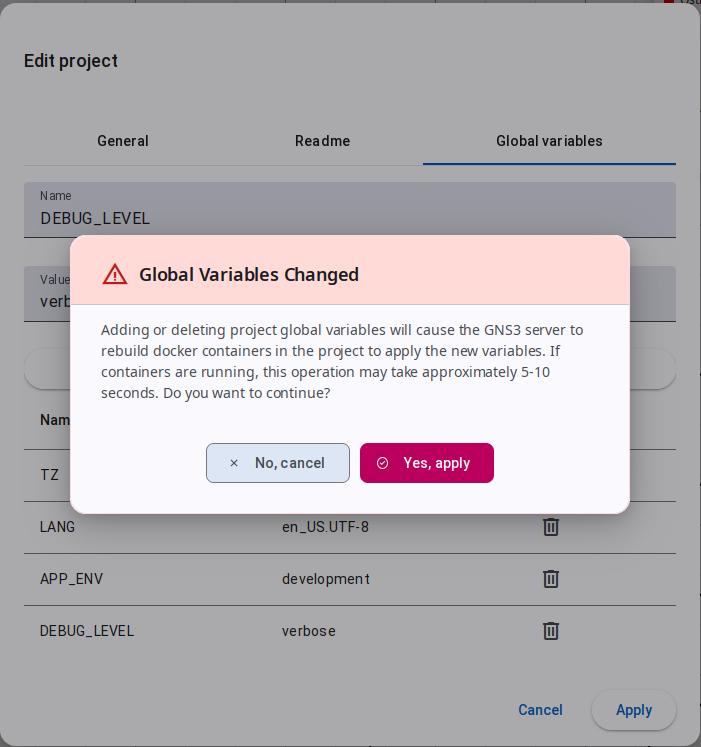
-
After confirming, GNS3 automatically rebuilds the Docker containers to apply the new environment variables.
-
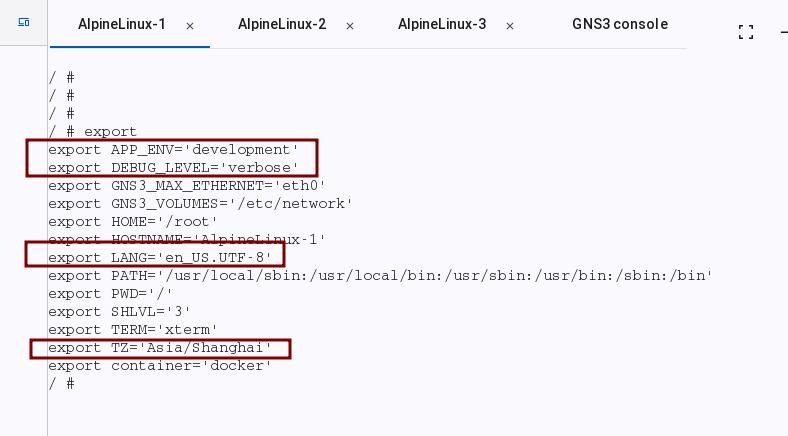
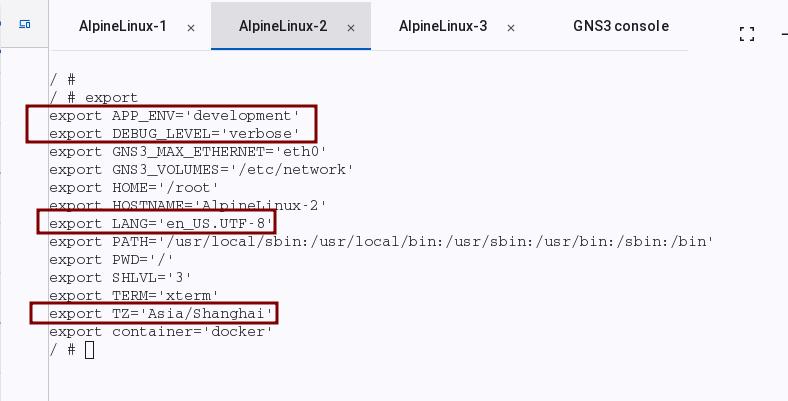
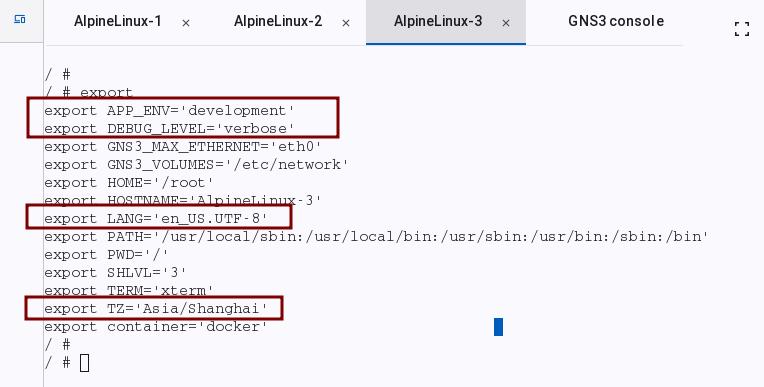
Start the Alpine Linux Docker containers, connect via Web Console, and run the
exportcommand to verify the global variables have taken effect.